Document Management System (DMS)
The entity, Document Management System (DMS) is configured when you are dealing with documents. The DMS manages, tracks, and stores the documents in encrypted format. In a process flow, for uploading or downloading files we need a repository. DMS is a repository configuration based on your requirements. In the background, services are used to store and retrieve details from the DMS.
Info
DMS is a mandatory requirement for creating process flows. You cannot deploy a process flow without configuring a default DMS. If you deploy a process flow without configuring a default DMS, an error message appears.
Creating New DMS
Follow the below steps for creating a new DMS.
-
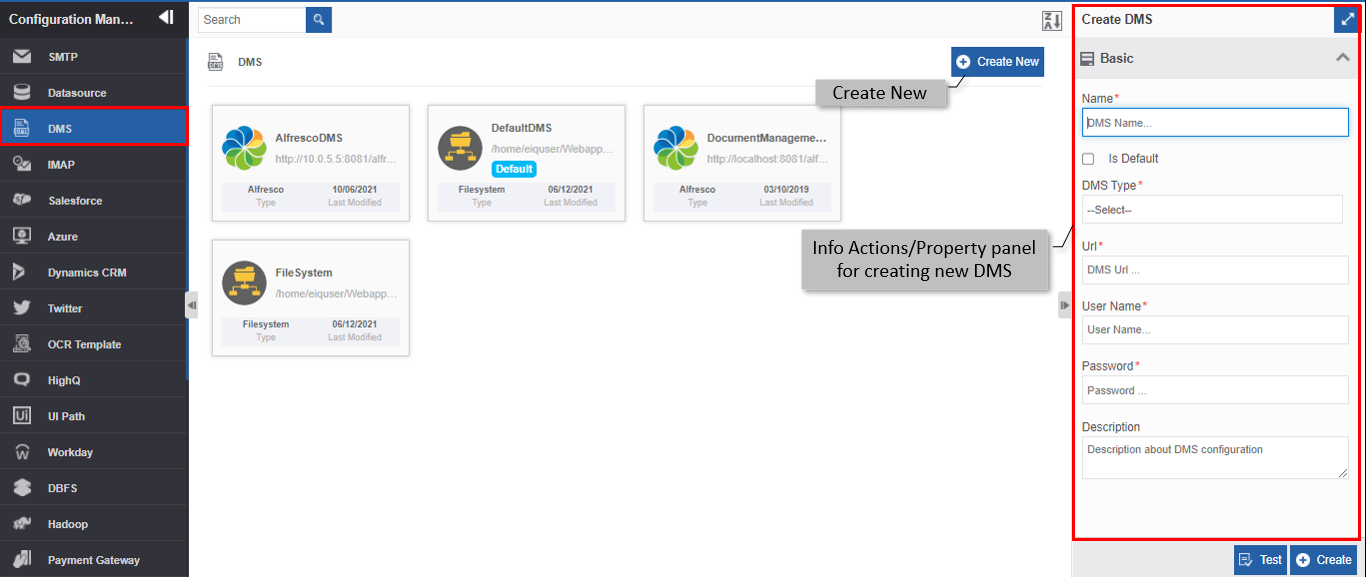
Navigate to Management > Configuration Management > DMS.
-
Click +Create New.
-
Enter the Basic details in the Create DMS panel as explained below. Scroll down the Create DMS section for viewing all the configuration details.
Field Description Name* Enter the name of the DMS.
Character limit: 50.
Data type: Alphanumeric and underscore.Is Default Check the checkbox adjacent to Is Default , if you need to set the DMS as a Default DMS. If there is any other default DMS, it will be set back as non-default.
Note: You can configure only one DMS as the default DMS. If you set a DMS as default, the previously existing default DMS will change to non-default automatically.
Uncheck the checkbox if you do not need the DMS as default.DMS Type Select the DMS type as per your need from the drop-down. 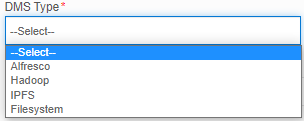
Refer to Types of DMS for more details.Url* Enter the base path for the DMS. This is chosen as the base path and for each instance of the workflow, it will create a secondary path based on the application name, process flow name and the instance to store the files uploaded for the execution of the flow. This field is not applicable for Hadoop type DMS. Description Write a brief description of the DMS.
Character limit: 1000 characters
Data type: Alphanumeric and symbols. -
Click Create on the bottom right of the page and the DMS gets created with the details entered.
Types of DMS
Alfresco
Alfresco delivers innovative content management solutions that connect, manage, and protect your enterprise's most important information - wherever it lives. With Alfresco's open, cloud-native ECM, you can manage content from anywhere, connect information with users everywhere, and deliver apps to any device.
-
Select DMS Type as Alfresco. The Alfresco configuration details appear.
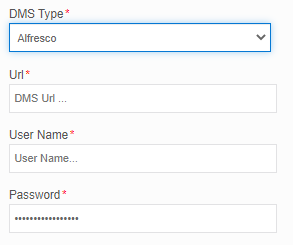
Field Description URL* Enter valid URL reference for the DMS. Username* Enter a valid username.
Character limit: 1000 characters
Data type: Alphanumeric and symbols.Password* Enter the password.
Character limit: 1000 characters
Data type: Alphanumeric and symbols.
Hadoop👑
Hadoop type will be available for selection only if you have an Enterprise plan.
IPFS
The Inter Planetary File System (IPFS) is a protocol and peer-to-peer network for storing and sharing data in a distributed file system. IPFS uses content-addressing to uniquely identify each file in a global namespace connecting all computing devices.
-
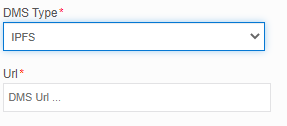
Select DMS Type as IPFS. The IPFS configuration details appear.
-
Enter the DMS URL for connecting to IPFS.
Filesystem
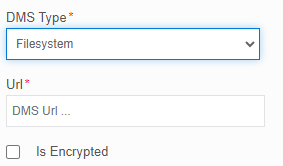
File system refers to the DMS for utilizing the App Server as a document repository. Files uploaded to the Filesystem are stored locally.
-
Select DMS Type as Hadoop. The Hadoop configuration details appear.
-
Enter the DMS URL for connecting to the file system.
- Select Is Encrypted if you want to enable the encryption else deselect Is Encrypted. If the DMS is encrypted, the path of the file after the base path (base path is the Url field in the DMS configuration) will be encrypted.
Viewing and Editing DMS
- Navigate to Management > Configuration Management > DMS.
-
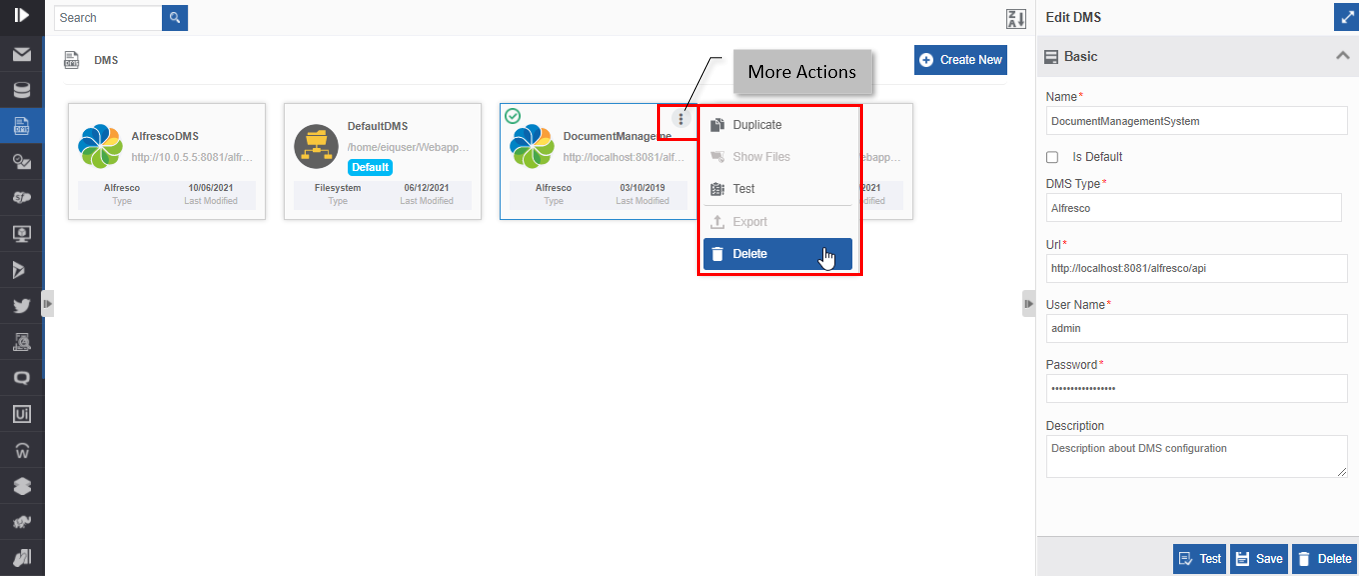
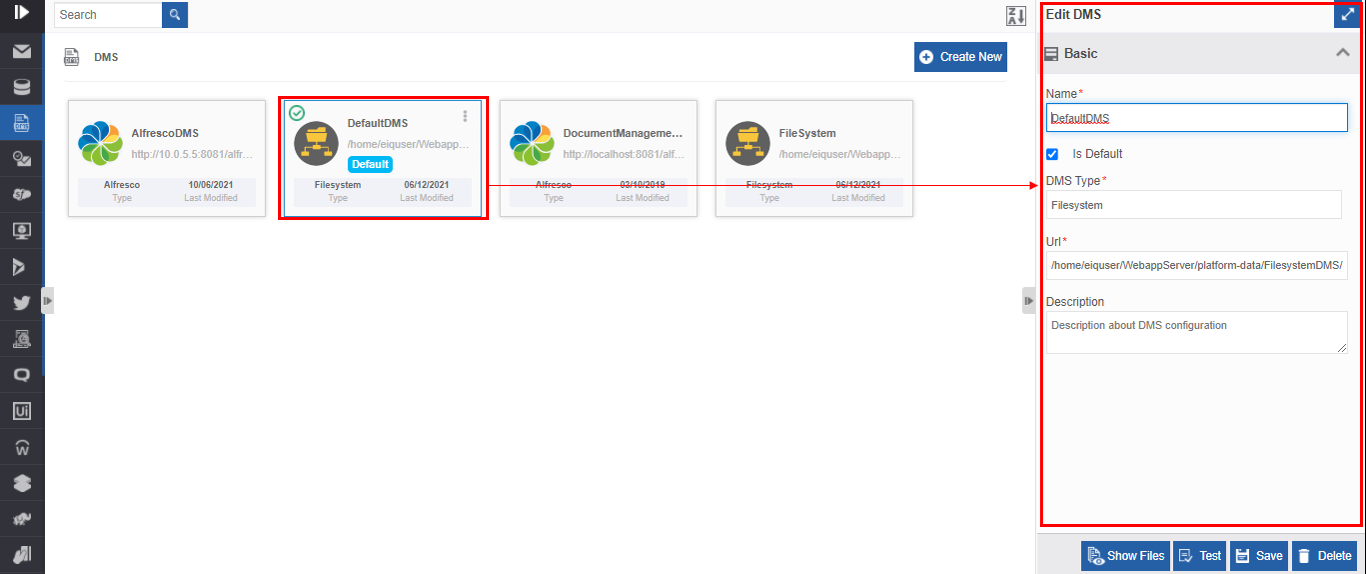
Click the DMS card to view the details of the selected DMS. The details of the DMS appear in the Info Actions panel (Edit DMS).
-
Edit the DMS details as needed.
- Click Save.
Duplicating DMS
Follow the below steps for duplicating an existing DMS.
- Navigate to Management > Configuration Management > DMS. The DMS list appears.
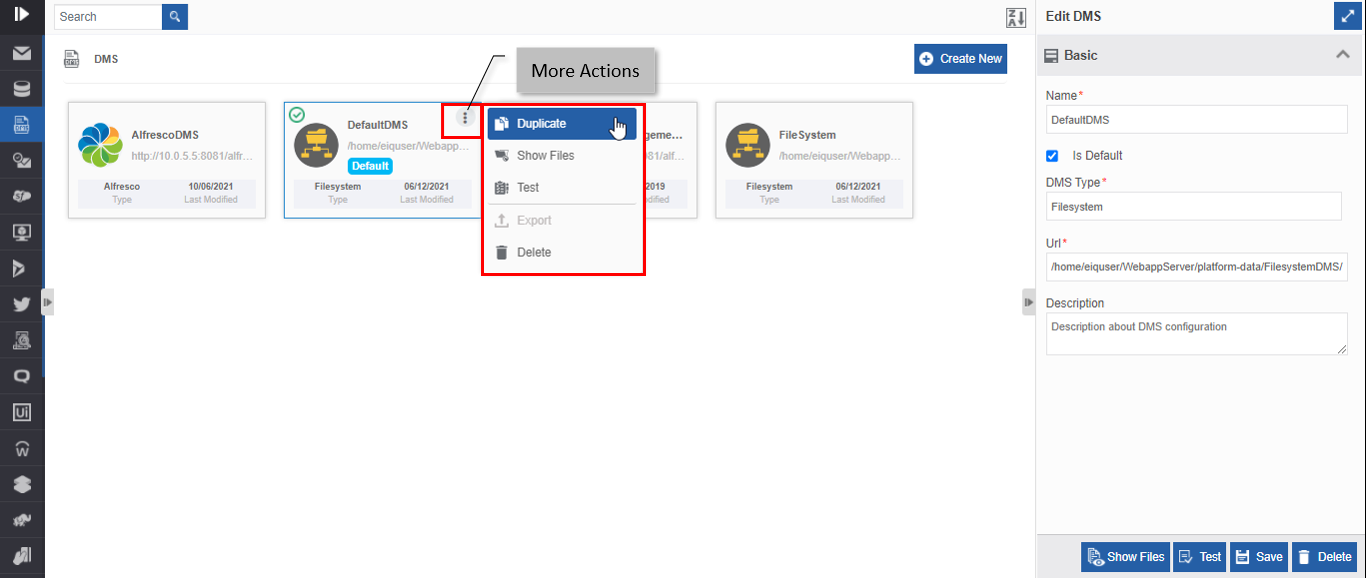
- Hover over any DMS card. Three dots appear on the upper right side of the card.
-
Click the three dots. More Actions appear.
-
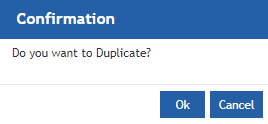
Click Duplicate. A confirmation pop-up appears.
-
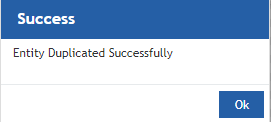
Click Ok for duplicating the DMS (or you can click Cancel to cancel the duplicate action). A Success message appears on the successful duplication of the DMS.
-
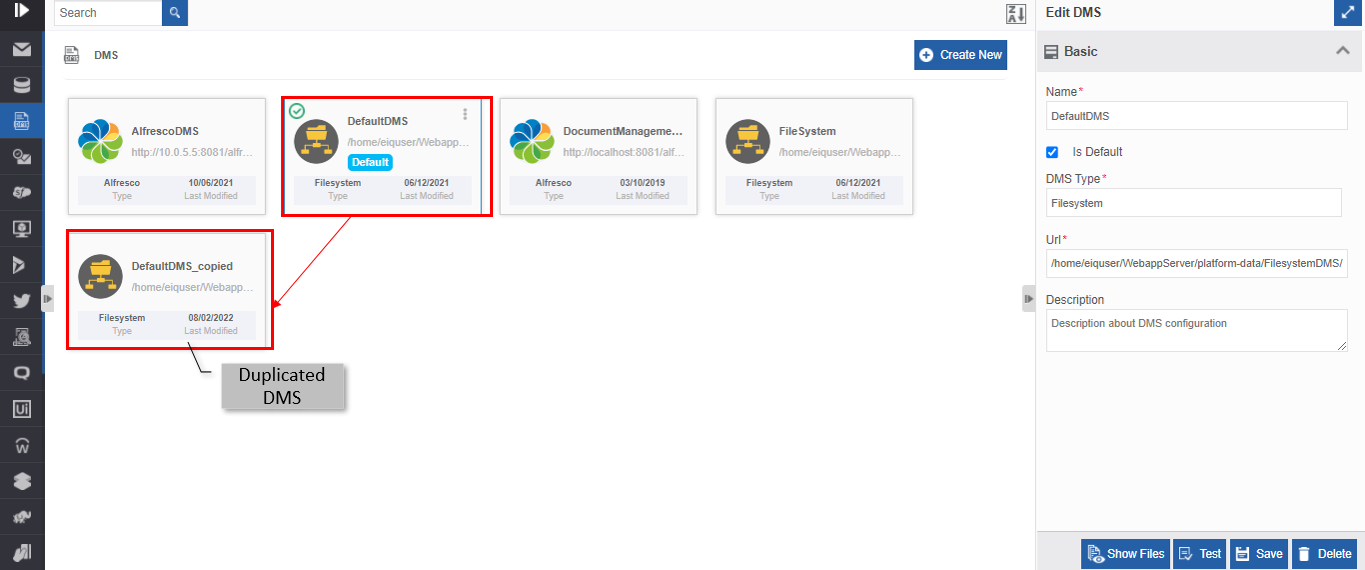
Click Ok. A duplicate copy of DMS appears on the DMS page with the same DMS name suffixed with “_copied”.
Testing DMS
You can test the DMS created using the Test feature. Test functionality validates the configuration details of the DMS.
- Navigate to Management > Configuration Management > DMS. The DMS list appears.
-
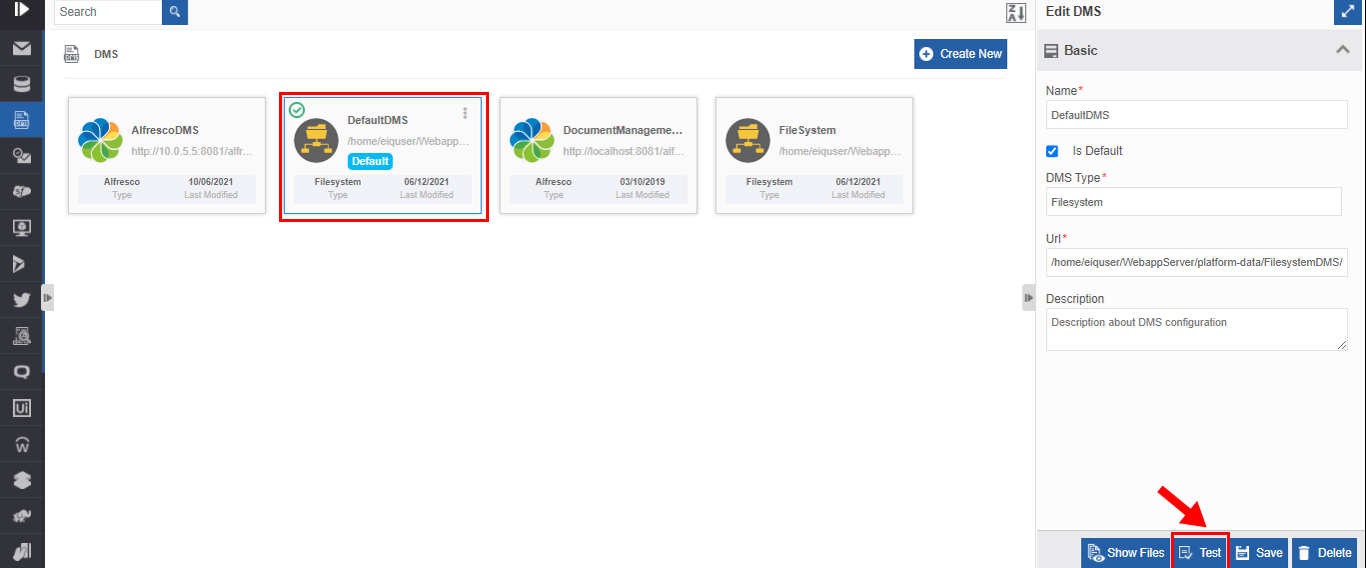
Click the DMS to be tested.
-
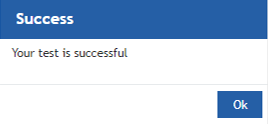
Click Test on the lower-right of the page. A success message is displayed on the successful validation of the entity.
-
Click Ok.
Alternatively, you can follow the below steps to test the DMS:
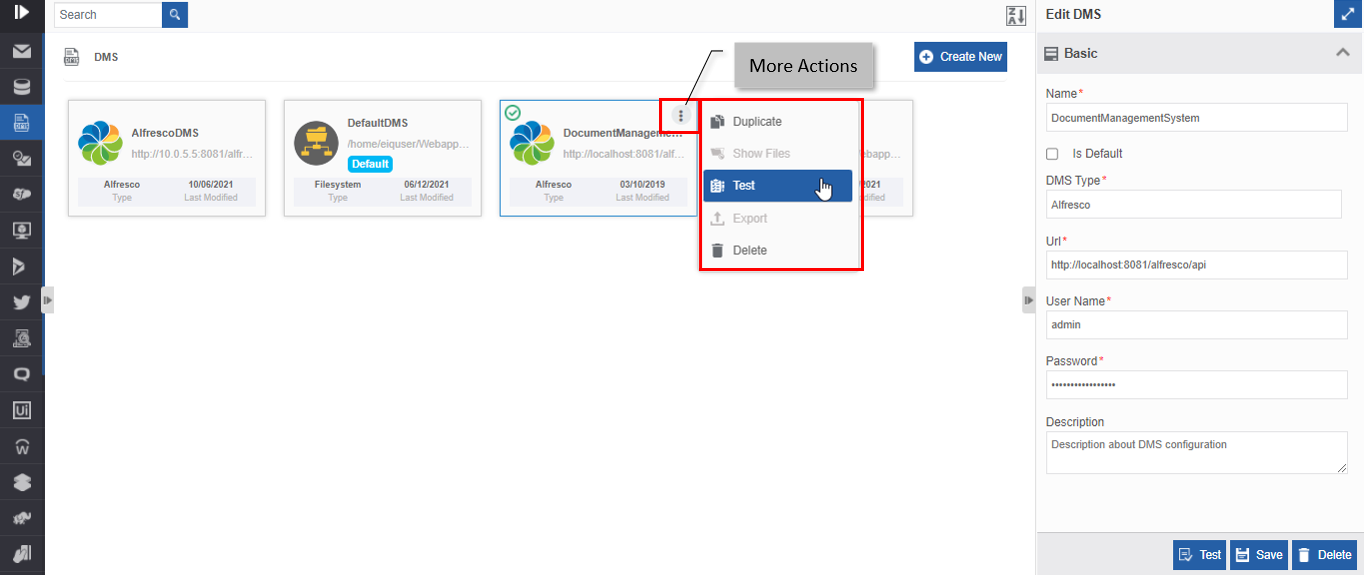
- Navigate to Management > Configuration Management > DMS.
- Hover over the DMS card. Three dots appear on the upper right side of the card.
- Click the three dots. More Actions appear.
- Click Test. A success message is displayed on the successful validation of the entity.
-
Click Ok.
Showing Files in Filesystem
Showing the files is applicable only for the DMS type, Filesystem. Files uploaded are stored locally in directories.
- Navigate to Management > Configuration Management > DMS. The DMS list appears.
-
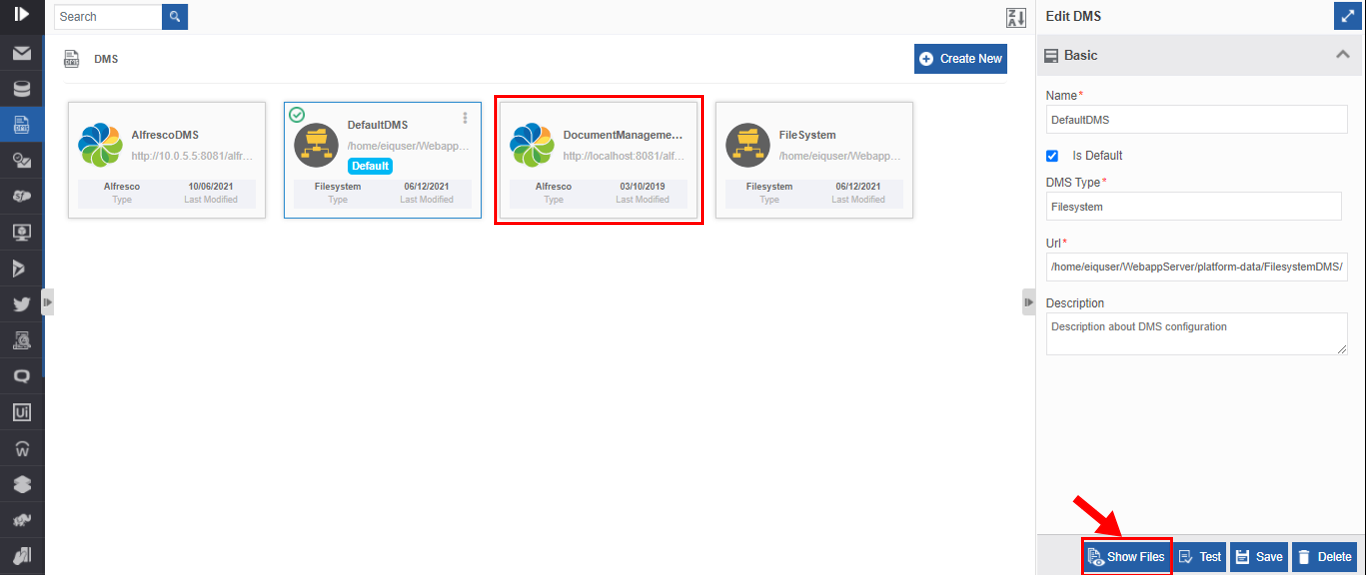
Click the DMS name card for which files are to displayed. The selected DMS should be of the type, Filesystem. The DMS card displays the type of DMS on the lower left of the card. When you select DMS of type, Filesystem, the lower-right of the page displays the Show Files button.
-
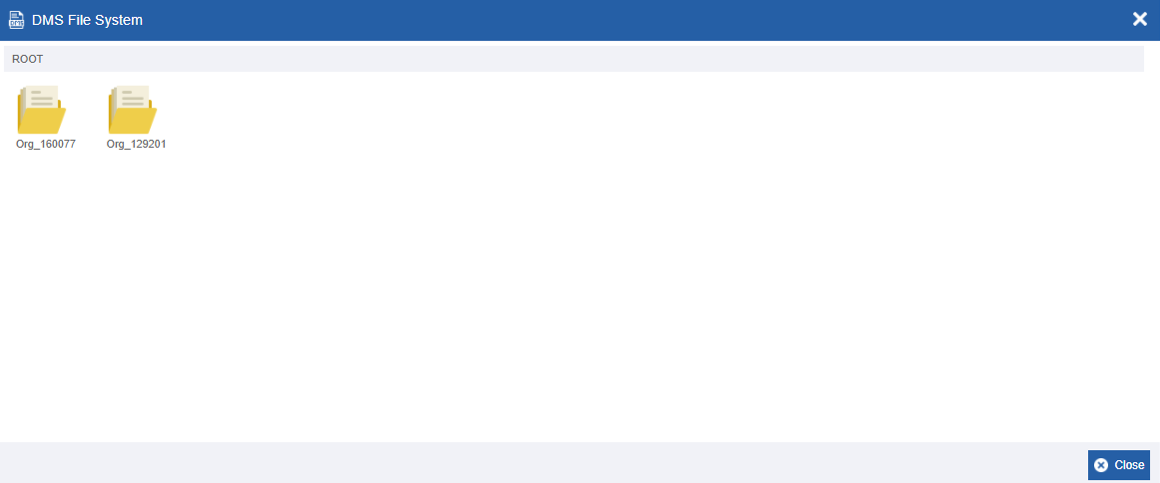
Click Show Files. The DMS File System appears in a pop-up with the root directory folders.
-
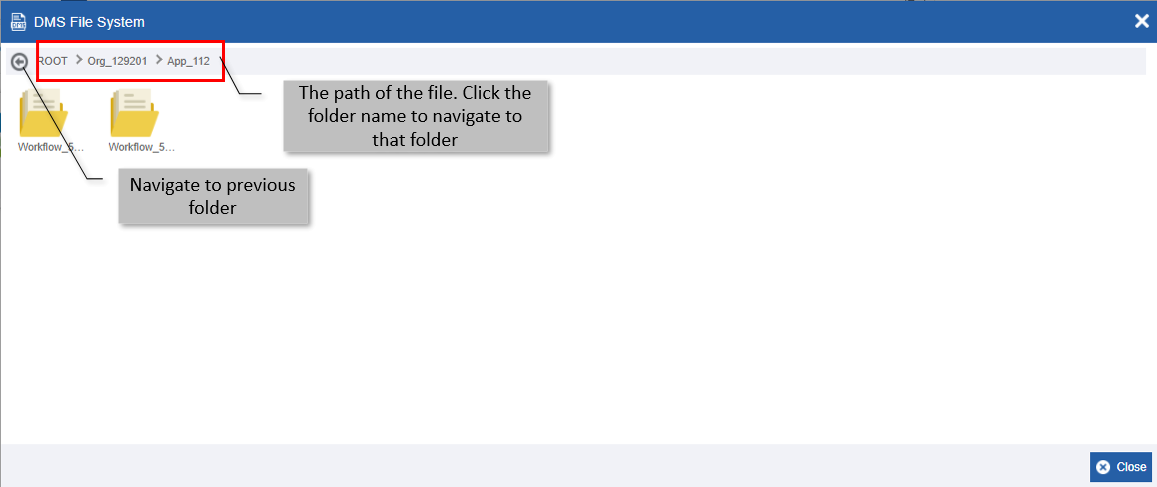
Double-click any folder to navigate inside the folder details. The root and path of the file system appear on the top.
-
Click the folder name in the path to navigate to the required folder and click the back arrow to navigate to the just previous folder.
- Click Close to close the file system directory.
Alternatively, you can follow the below steps to show files in the file system:
- Navigate to Management > Configuration Management > DMS.
- Hover over the DMS card. Three dots appear on the upper right side of the card.
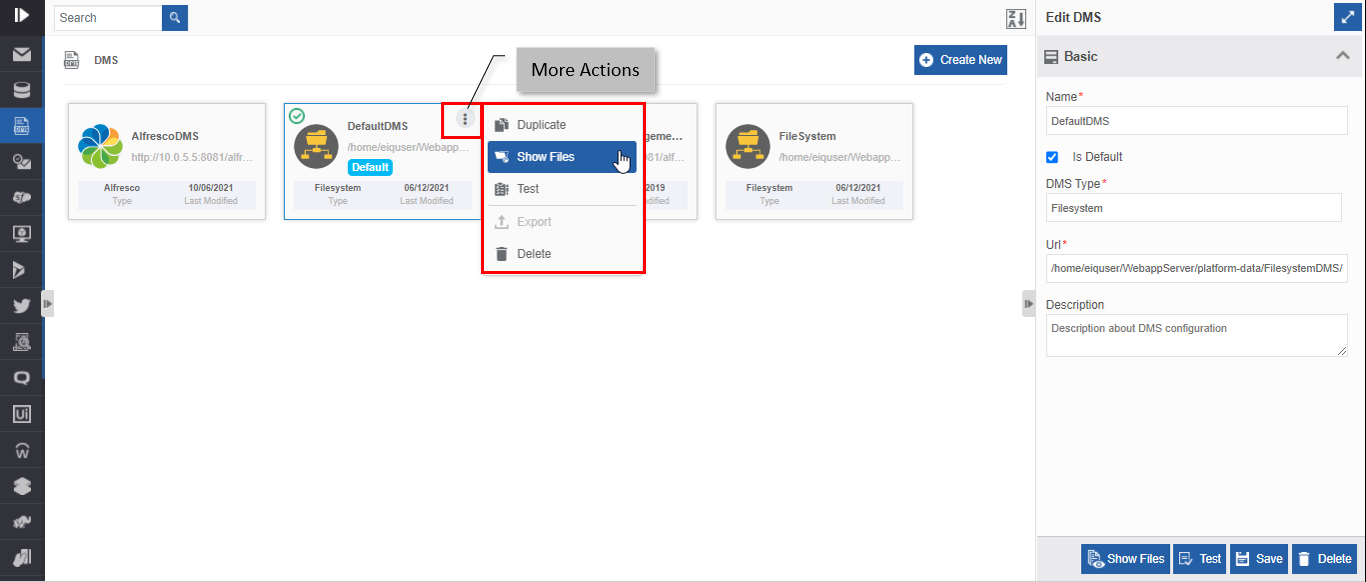
- Click the three dots. More Actions appear.
-
Click Show Files and follow from step 5 onwards in the above procedure.
Deleting DMS
You can delete the default DMS and other DMSs. When you delete a default DMS, you need to configure another DMS as the default DMS. You cannot retrieve the deleted DMS.
- Navigate to Management > Configuration Management > DMS. The DMS list appears.
-
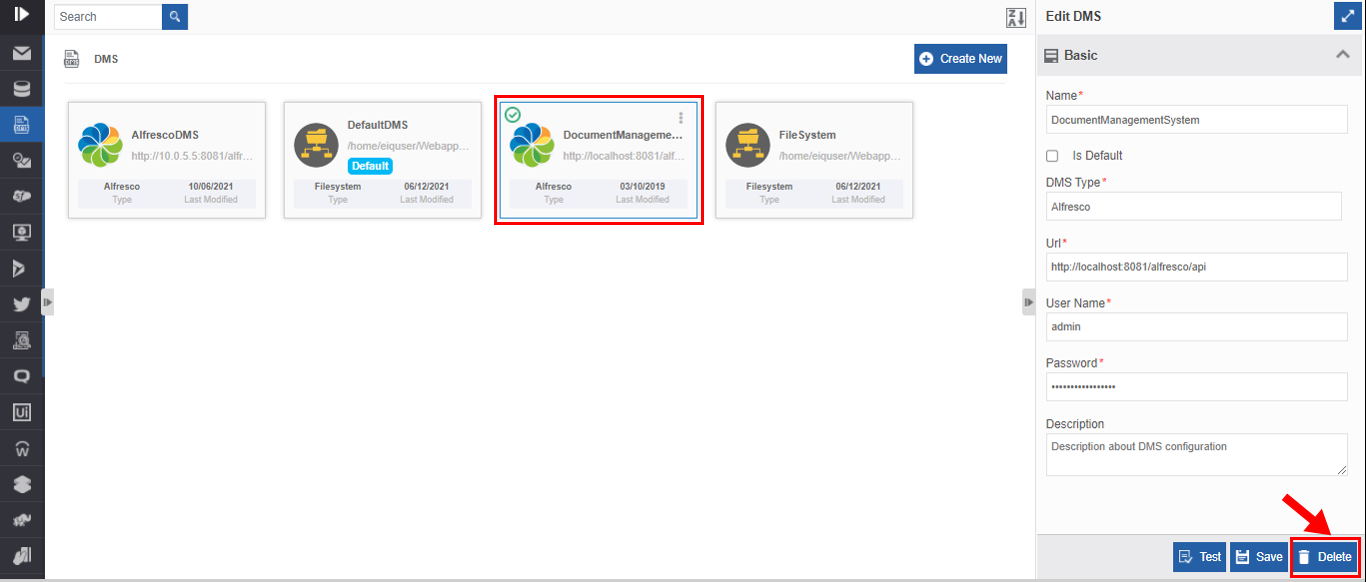
Click the DMS name card that is to be deleted. The lower-right of the page displays the Delete button.
-
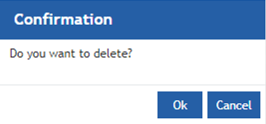
Click Delete. A Confirmation pop-up for delete appears.
-
Click Ok for deleting the DMS.
Or
Click Cancel to cancel the action.
Alternatively, you can follow the below steps to delete the DMS:
- Navigate to Management > Configuration Management > DMS.
- Hover over the DMS card. Three dots appear on the upper right side of the card.
- Click the three dots. More Actions appear.
-
Click Delete and follow step 4 in the above procedure.