Organization Calendar
The entity, Organization Calendar, is a mandatory requirement for the process flows to follow a particular calendar and time for executing the process. Organization Calendar is configured and mapped to an activity (task activity) in a process flow when you need to achieve special requirements based on calendar or time zone. Organization Calendar allows you to customize, configure, and create different calendars as per the requirement.
The organization calendar is used at the Activity level (Task activity), Process level, and Organization level.
Creating New Organization Calendar
Follow the steps below to create a new Organization Calendar.
-
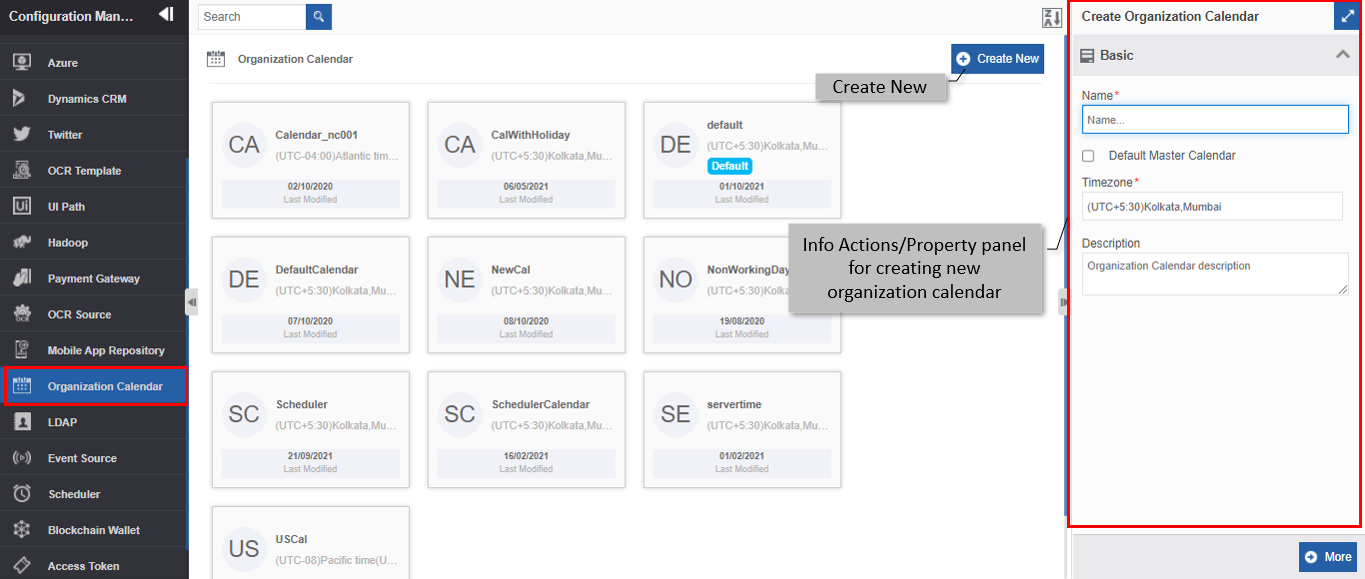
Navigate to Management > Configuration Management > Organization Calendar.
-
Click +Create New.
-
Enter the Basic details in the Create Organization Calendar panel as explained below.
Field Description Name* Enter the name of the Organization calendar.
Character limit: 50.
Data type: Alphanumeric and underscore.Default Master Calendar Check the checkbox adjacent to Default Master Calendar , if you need to set the calendar as a Default master calendar. If there is any other default calendar, it will be set back as non-default.
Note: You can configure only one calendar as the default master calendar. If you set a calendar as default, the previously existing default calendar will change to non-default automatically.
Uncheck the checkbox if you do not need the calendar as default.Timezone* Select the required time zone from the drop-down list. 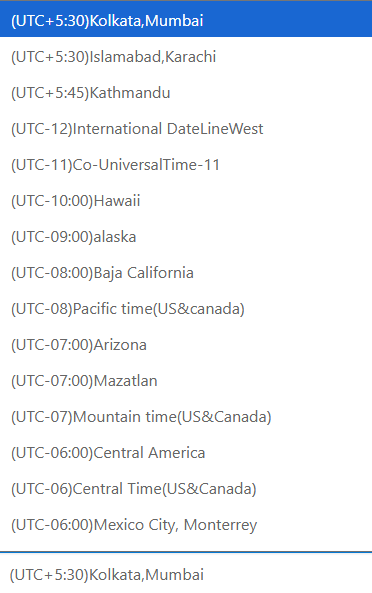
Description Write a brief description of the calendar.
Character limit: 1000 characters
Data type: Alphanumeric and symbols. -
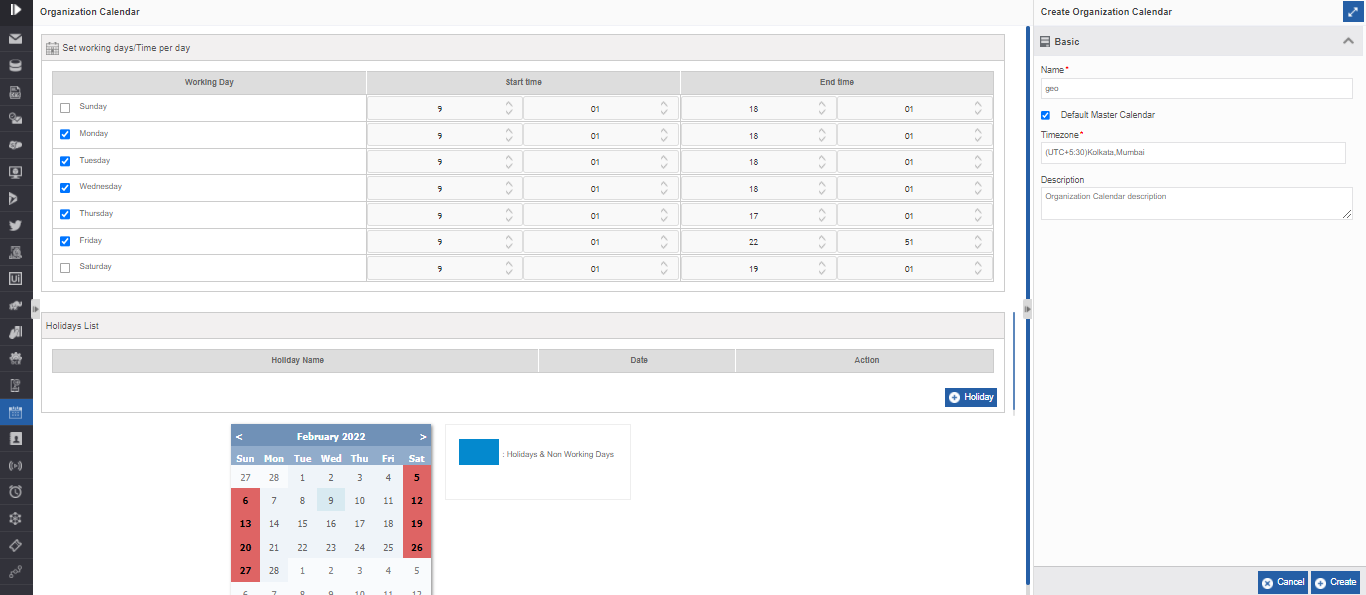
Click More. More details for the calendar page appear.
-
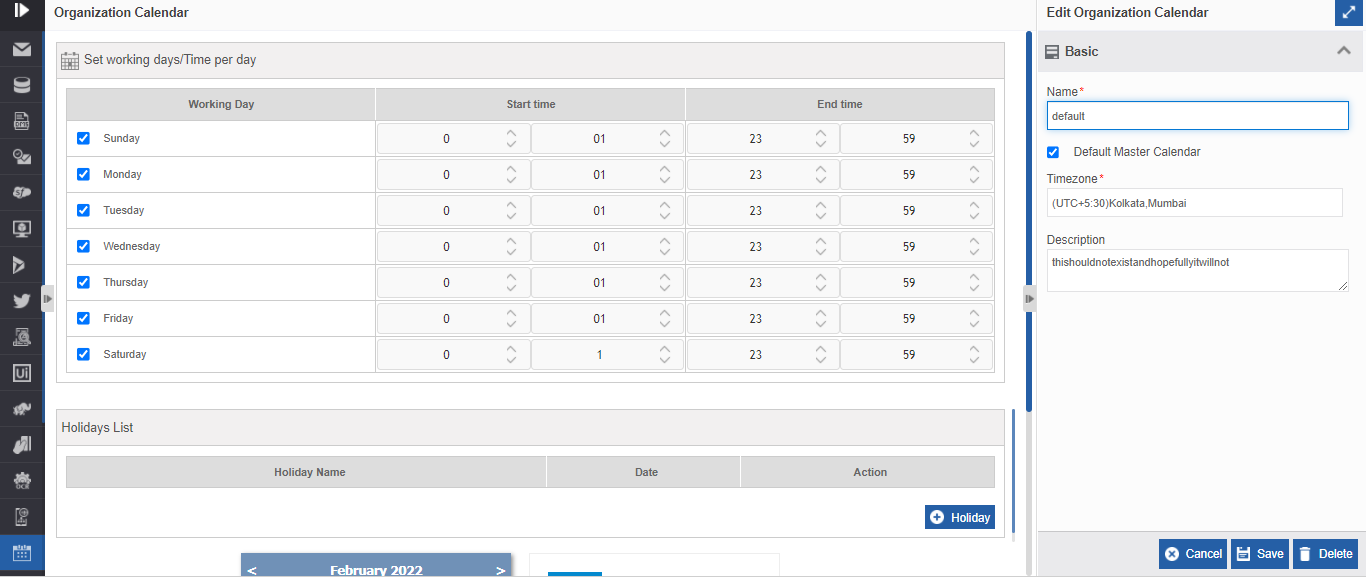
Enter calendar details as explained below.
Field Description Set Working days/Time per day Select the weekday checkbox for the working days below Working Day and select the Start time and End time. You can enter the time directly or use the spin buttons. The first column in the time indicates hours and the second column indicates the minutes. 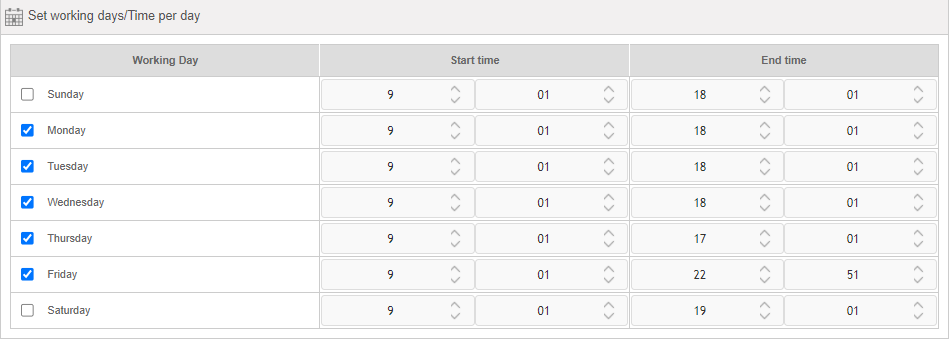
Holiday List The list of holidays created for the calendar is displayed in the Holiday list.
To add a holiday, click Holiday at the bottom right of the Holiday List panel.
- Enter Holiday Name.
- Select Date from the date control.
Action column displays the delete icon for deleting the holiday created. You cannot edit the holiday created. You need to delete the holiday and create another one.
- Click the delete icon to delete the Holiday.
The calendar below the Holiday List displays the Holidays and non-working days in a different color as indicated in the legend. -
Click Create on the bottom right of the page and the organization calendar gets created with the details entered.
Viewing and Editing Organization Calendar
- Navigate to Management > Configuration Management > Organization Calendar.
- Click the Organization Calendar card to view the details of the selected calendar. The details of the calendar appear in the Info Actions panel (Edit Organization Calendar).
-
Click More.
-
Edit the calendar details as needed.
- Click Save.
Duplicating Organization Calendar
Follow the below steps to duplicate an existing organization calendar.
- Navigate to Management > Configuration Management > Organization Calendar. The list of all organization calendar cards appears.
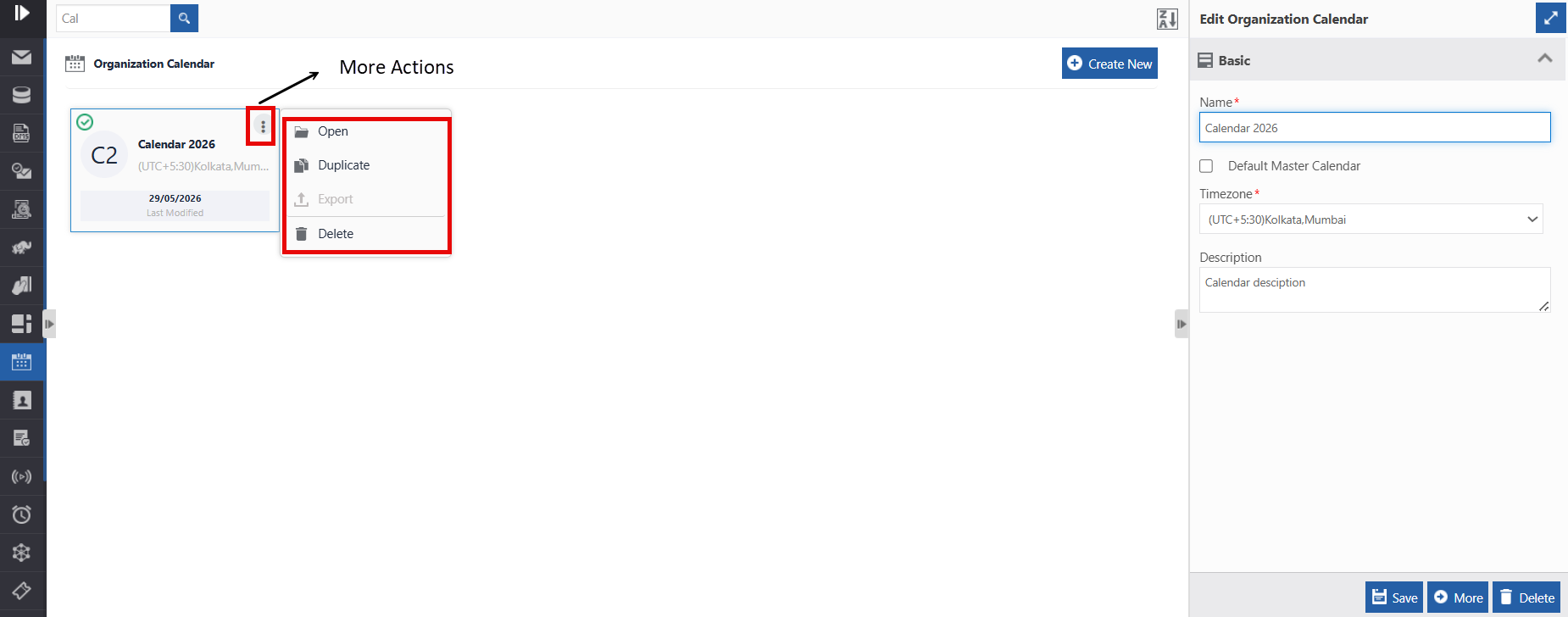
- Hover over any calendar card. Three dots appear on the upper right side of the card.
-
Click the three dots. More Actions appear.
-
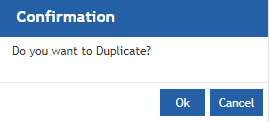
Click Duplicate. Confirmation pop-up appears.
-
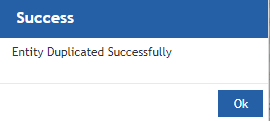
Click Ok for duplicating the calendar (or you can click Cancel to cancel the duplicate action). A Success message appears on the successful duplication of the calendar.
-
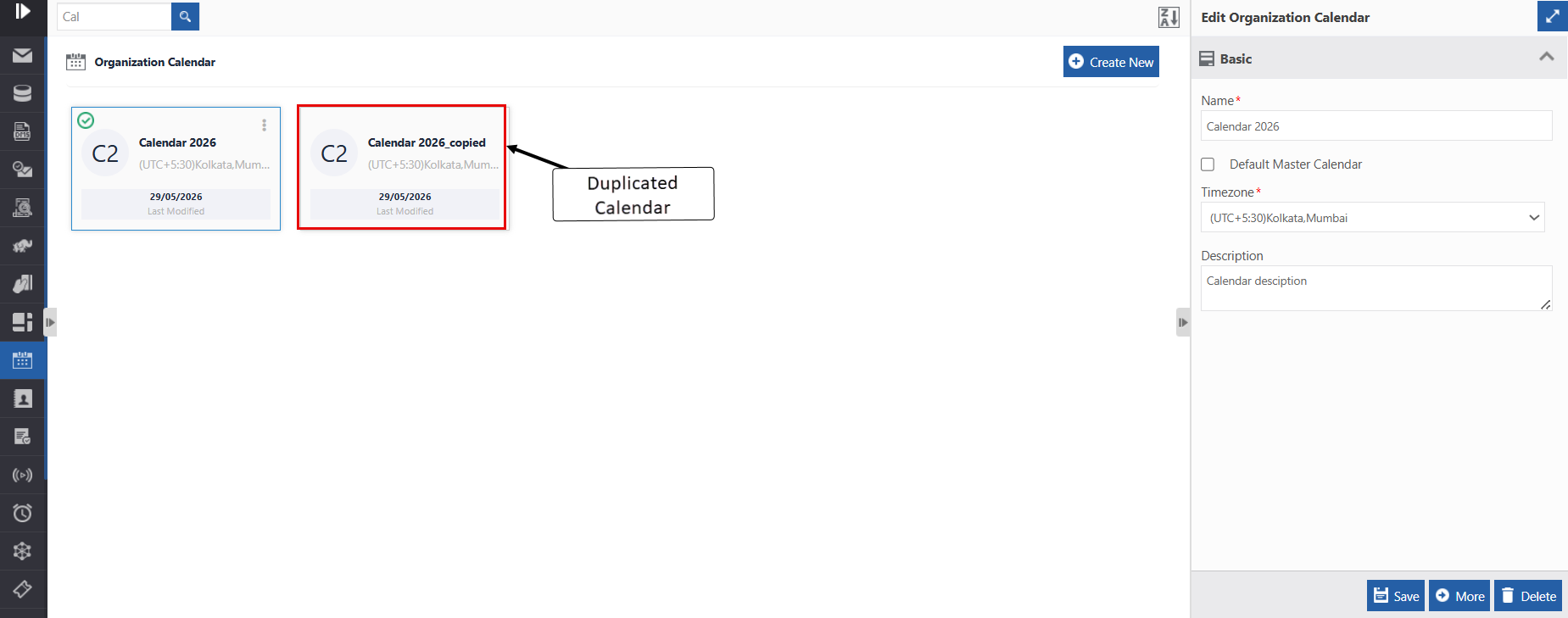
Click Ok. A duplicate copy of the calendar appears on the calendar page with the same calendar name suffixed with “_copied”.
Deleting Organization Calendar
You can delete the default calendar and other calendars. When you delete a default calendar, you need to configure another calendar as the default calendar. You cannot retrieve the deleted calendar.
- Navigate to Management > Configuration Management > Organization Calendar. The list of all calendars appears.
-
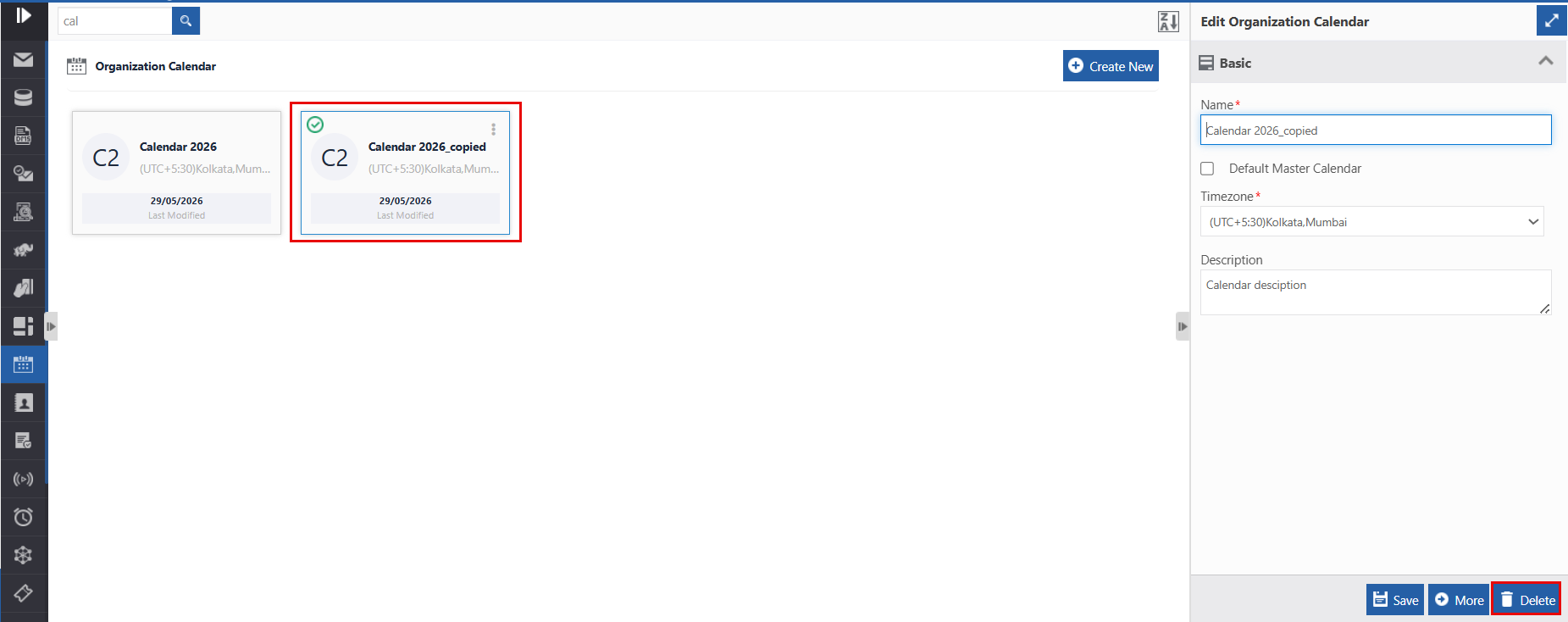
Click the calendar name card that is to be deleted. The lower-right of the page displays the Delete button.
-
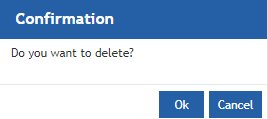
Click Delete. A Confirmation pop-up for delete appears.
-
Click Ok for deleting the calendar.
Or
Click Cancel to cancel the action.
Alternatively, you can follow the below steps to delete the calendar:
- Navigate to Management > Configuration Management > Organization Calendar.
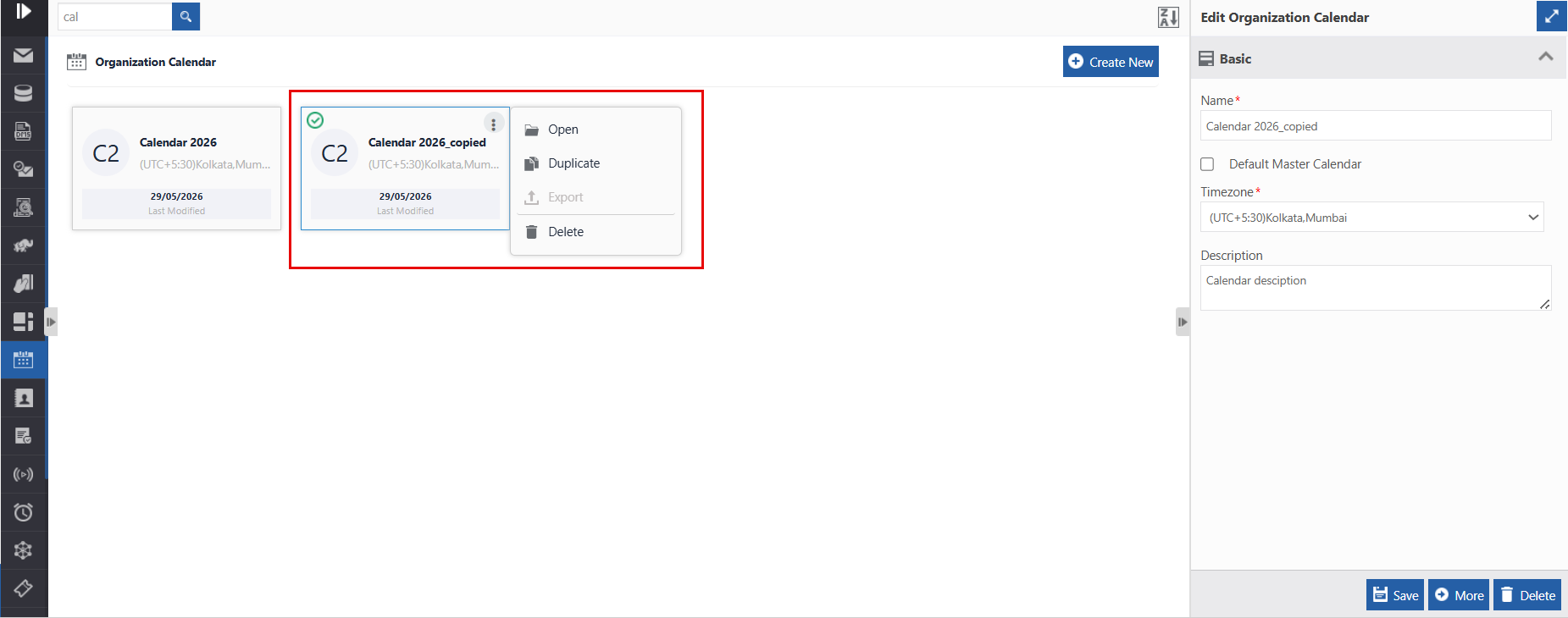
- Hover over the organization calendar card. Three dots appear on the upper right side of the card.
- Click the three dots. More Actions appear.
-
Click Delete and follow step 4 in the above procedure.
Appendix
Generating App Password
Different SMTP/IMAP hosts have different way of getting authentication password.
If the SMTP/IMAP host is not enabled with 2-step authentication, you can provide the password of the user in the password field to trigger the email.
If an SMTP/IMAP host is enabled with 2-step authentication, you need to generate 16-digit app password and then provide that password in the Auth = true > Password field.
An example of generating app password for the SMTP/IMAP host (Gmail) where 2-step authentication is enabled, is provided below.
Example – Gmail Host
Follow the below steps to generate the password for Gmail account.
- Login to the Google account (the account that you want to configure in SMTP/IMAP) using your credentials.
-
Navigate through Google Account > Manage your Google Account. Google Account page opens.
-
On the right-side menu click Security. The Security page appears.
-
In the Signing into Google section, click 2-Step verification. 2-Step verification page appears.
If you have already turned on the 2-step verification, go to step 13 or else if you have not turned on 2-step verification go to step 5.
-
Click Get Started. You will be logged out and prompted for password to continue. This is a verification process.
- Enter your password and click Next. You will be redirected to the 2-step verification page.
- Below What phone number do you want to use?, provide the Phone number.
- Below How do you want to get codes?, select the option Text message (preferred) if you want to get the code as text message or select the option Phone Call if you want to get the codes through a phone call.
- Click Next. A verification code is sent as SMS to the phone number that you entered above.
- Enter the code in the specified field and click Next. A success message is displayed (if correct code is entered).
- Click Turn On. Now the 2-Step Authentication is switched on. If the 2-Step Verification is switched off, you can just give your account password in the password field in the Platform > Management > Configuration Management > SMTP/IMAP properties.
- Navigate back to Security page > Signing into Google section.
- Click App Passwords. You will be logged out and prompted for password to continue.
- Enter your password and click Next. App Password page opens. It will prompt for the app (Select app) and device (Select device). That is, in which app you need to access or which device you need to access the account.
- Click Select App > click Other (Custom Name) as we are using it for Platform, we need to specify that.
- Enter Platform and click Generate. An app password is generated and displayed.
- Below Your app password for your device, copy the 16 characters (password may be displayed in normally or in asterisks).
- Click Done.
- Now you have copied the app password and you can copy this password in the Platform > Management > Configuration Management > SMTP/IMAP properties.