Scheduler
The entity, Scheduler is used when you need to create a timer with a recurrence pattern, and range of recurrence based on calendars. Different schedules can be configured for the same or different calendars.
Creating New Scheduler
Follow the steps below to create a new scheduler.
-
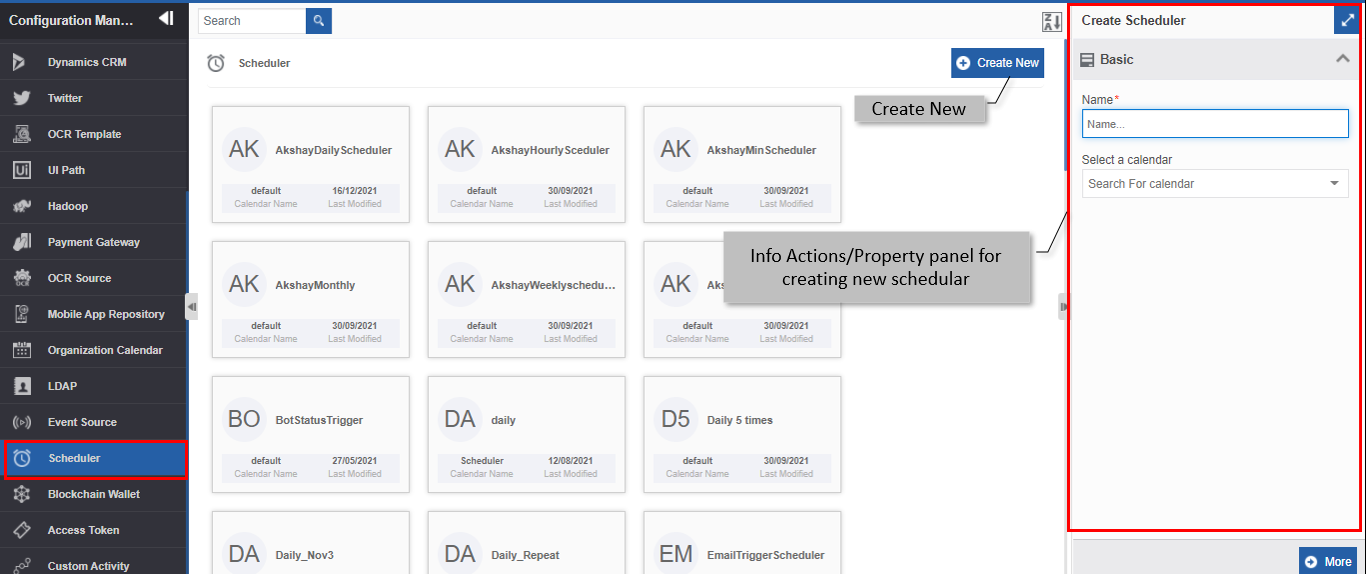
Navigate to Management > Configuration Management > Scheduler.
-
Click +Create New.
-
Enter the Basic details in the Create Scheduler panel as explained below.
Field Description Name* Enter the name of the scheduler.
Character limit: 50.
Data type: Alphanumeric and symbols. Whitespace is not allowed.Select a Calendar Click the drop-down and select an organization calendar based on which the scheduler needs to work. -
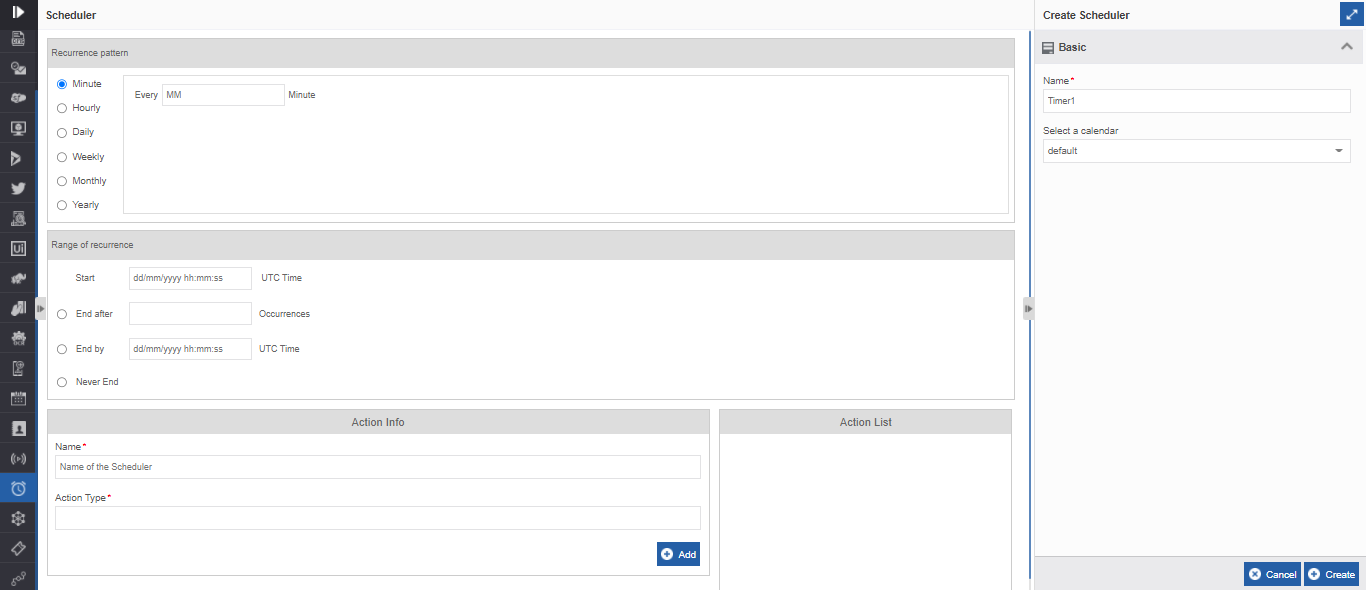
Click More. Recurrence details and Actions for the scheduler appear.
-
Enter the details as explained below.
Field Description Recurrence Pattern The recurrence pattern is the frequency pattern for the scheduler.
Select the option you want to set under the Recurrence pattern.
The right side of the panel displays the details of the selected option.
Refer to Setting the Recurrence Pattern for more details.Range of recurrence The range of recurrence is the date range in which the scheduler should execute. The system follows the mapped organization calendar for the start time and end time.
- Enter the Start time in the Start text box.
For the End time choose the required option.
- End after – Ends the execution after the specified number of occurrences.
- End by - Ends on the specified date and time.
- Never End – Executes indefinitely until the scheduler configuration is deleted.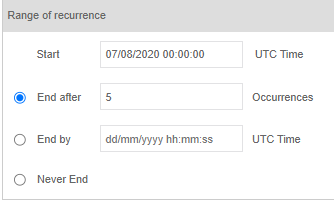
Action Info The action section allows you to define or set an action for the scheduler.
Enter details and add an Action as per the need.
Refer to Managing Actions in Scheduler for more details. -
Click Create on the bottom right of the page and the scheduler gets created with the details entered.
Setting the Recurrence Pattern
You can set the recurrence pattern as per the below details.
Click an option below Recurrence Pattern and follow the details in the description.
| Option | Description |
|---|---|
| Minute | Click Minute. Enter the number of minutes in the right-side textbox. The pattern recurs in every nth minute.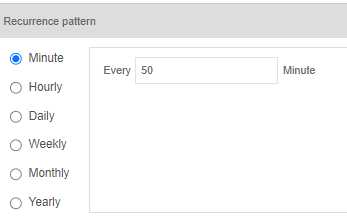 |
| Hourly | Click Hourly. Enter the number of hours in the right-side textbox. The pattern recurs every nth hour.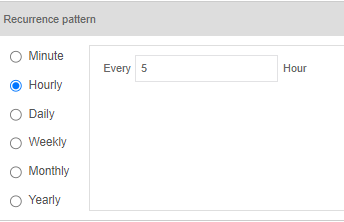 |
| Daily | Click Daily . Enter the interval of execution days and the time of execution. The pattern recurs every nth day at the execution time.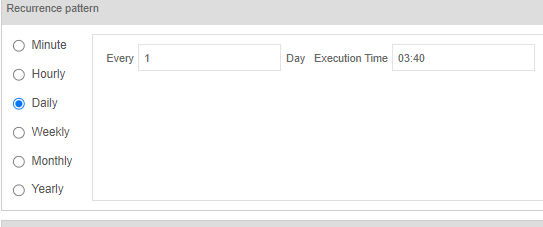 |
| Weekly | Click Weekly . Enter the interval of weekly occurrence, select the day of occurrence, and the Execution time. The pattern recurs every nth week on the selected day at the execution time.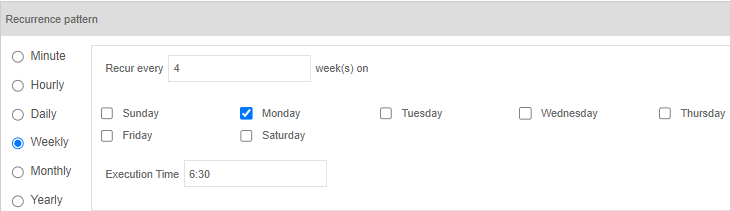 |
| Monthly | Click Monthly . Select the Day-wise or week-wise option as required and enter the details and execution time. The pattern recurs every nth day of the month or on the specified weekday (as selected) at the execution time.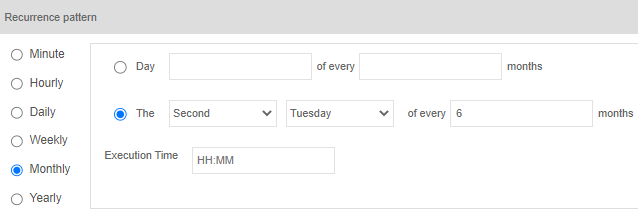 |
| Yearly | Click Yearly. Select date and month-wise or week-wise options as required and enter the details and execution time. The pattern recurs every nth day of the specified month or on the selected nth weekday of the specified month at the execution time.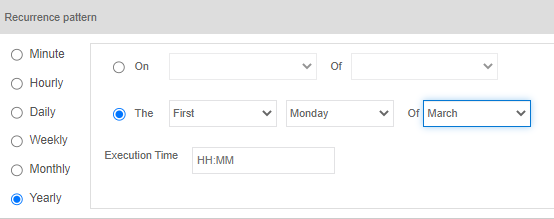 |
Managing Actions in Scheduler
The Action Info displays the Actions to be scheduled. You can add, update, or delete an action.
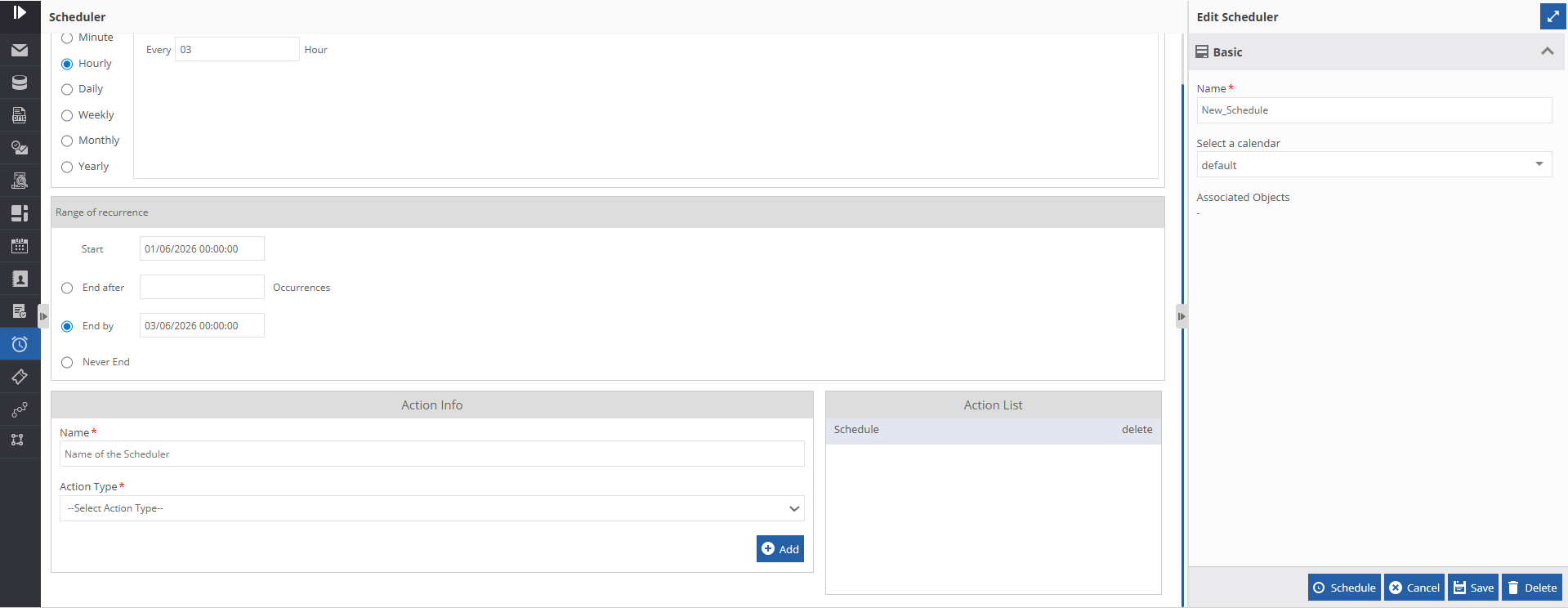
Adding a new Action
In the Scheduler Action Info section enter the details as explained below.
- Navigate to Management > Configuration Management > Scheduler.
- Click Create New > click More or click an existing scheduler card > click More.
-
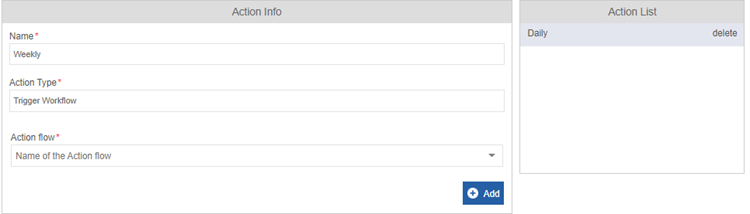
In the Action Info section, enter the name of the Action.
-
Select an Action Type from the drop-down. Action type is the flow/model that you want to schedule.
- Email Trigger: Select Email Trigger to automatically send a process flow email according to the configured schedule.
- Trigger Workflow: Select Trigger Workflow if you want to trigger a process flow using the scheduler.
- Execute Dataflow: Select Execute Dataflow if you want to execute a data flow using the scheduler.
Based on the Action Type selected, Action Flow appears with relevant details.
-
Select an Action Flow from the drop-down list. The Action Flows lists the selected type of flows. You can type the flow name for selection.
The following table explains the Action Flows for each type of Action Type.
Action Type Action Flow Trigger Workflow When you select Trigger Workflow, Action Flow displays the process flows.
Select the required process flows to be triggered.Execute Dataflow When you select Execute Dataflow, Action Flows displays the data flows.
Select the required data flow to be executed.Email Trigger When you select Email Trigger, Action Flows displays the list of configured process flows.
Select the required process flow to be triggered. -
Click +Add to add the Action. The Action created is listed in the Action List.
Viewing and Editing Action
- Navigate to Management > Configuration Management > Scheduler.
- Click Create New > click More or click an existing scheduler card > click More.
-
In the Action List, click the action to be viewed. Action Info displays the selected action.
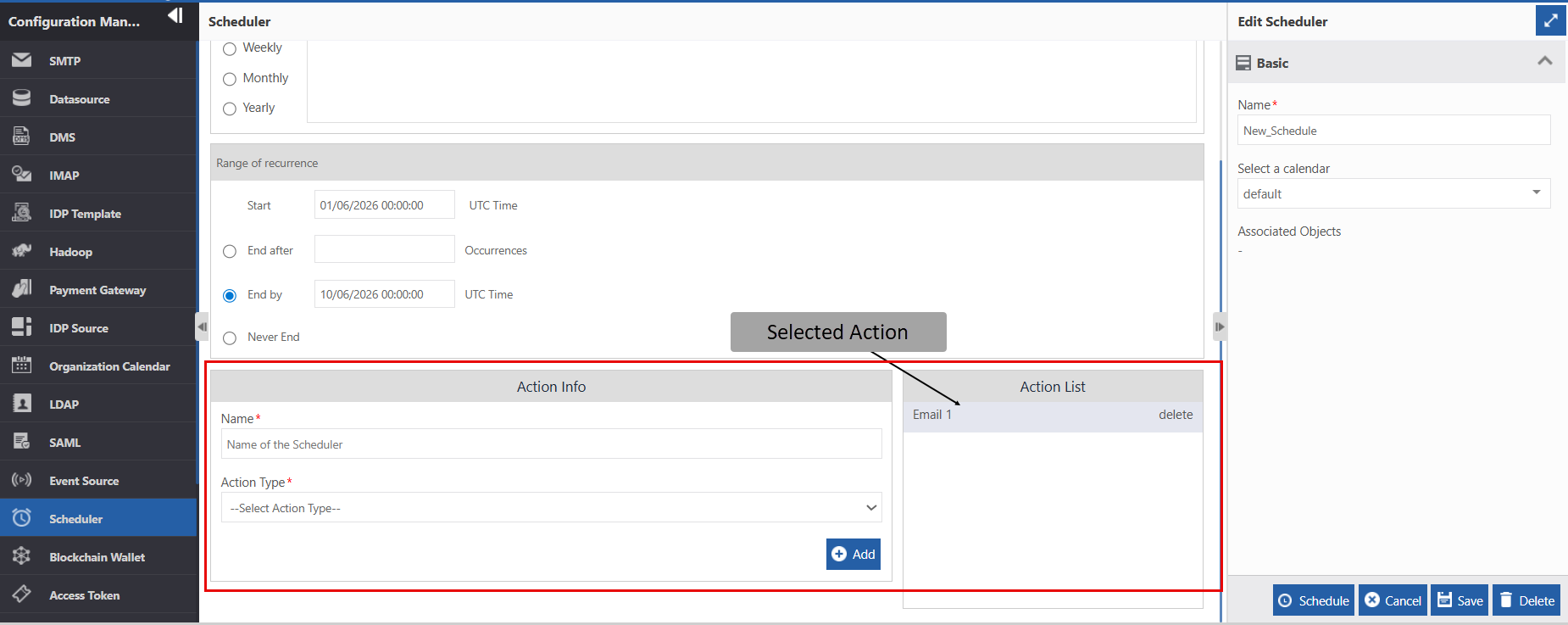
-
Edit the details as needed.
-
Click +Add.
-
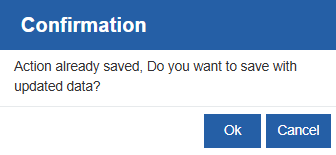
Click Ok to save the edited details.
Showing History Details for the Action
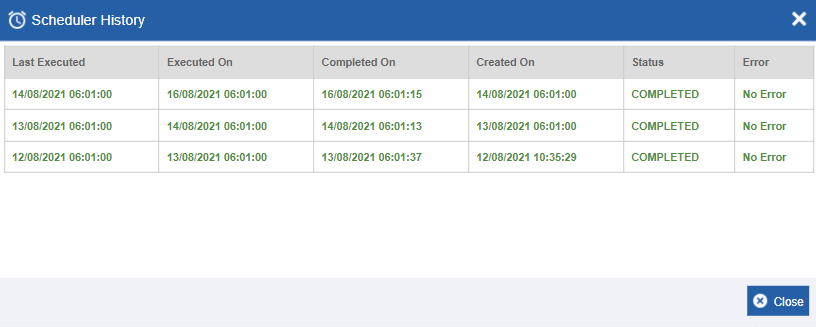
The Show History feature allows you to view the history of scheduled action executions, status, and log details.
- Navigate to Management > Configuration Management > Scheduler.
- Click Create New > click More or click an existing scheduler card > click More.
-
Click Show History. Scheduler History pop-up appears with the action history details and log details.
-
Click Close to close the Scheduler History.
Deleting Actions
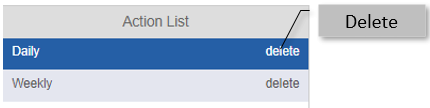
The Action List displays the list of actions added for the scheduler.
- Navigate to Management > Configuration Management > Scheduler.
-
Click Create New > click More or click an existing scheduler card > click More. Action List displays the actions added for the scheduler.
-
In the Action List, click “delete” adjacent to the action name. The action is deleted.
Suspend a Scheduled Job
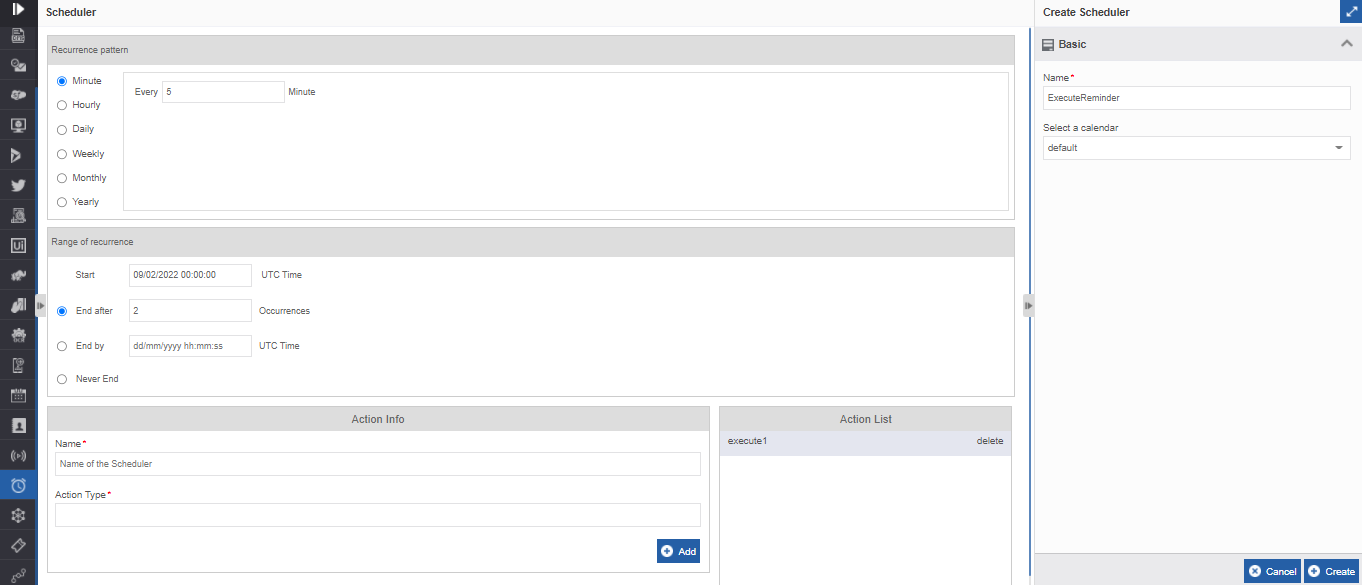
When you create a scheduler, the “Scheduler” button appears below the Info Action panel. This is displayed only till you initiate the scheduler. After initiating the scheduler, Suspend button is displayed. You can suspend the scheduler using the Suspend button.
- Navigate to Management > Configuration Management > Scheduler.
-
Click Create New and enter details for creating a scheduler.
-
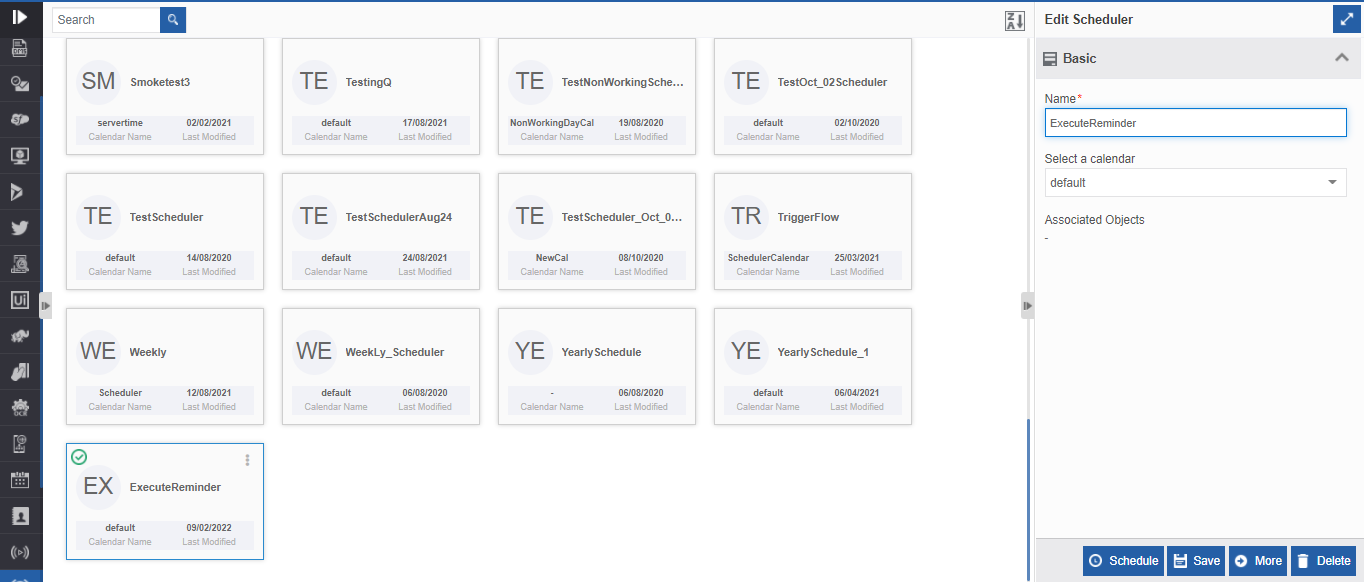
Click Create. The Schedule button appears. The Schedule button appears only till the first initiation of the scheduler.
Note
Unless you initiate the scheduler, triggering process flow or execution of data flow (as selected in the scheduler) will not get scheduled.
You can edit and save the details before initiating it.
-
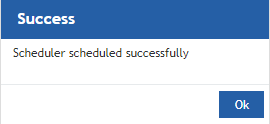
Click Schedule to initiate the scheduler. A success message appears if it is scheduled successfully.
-
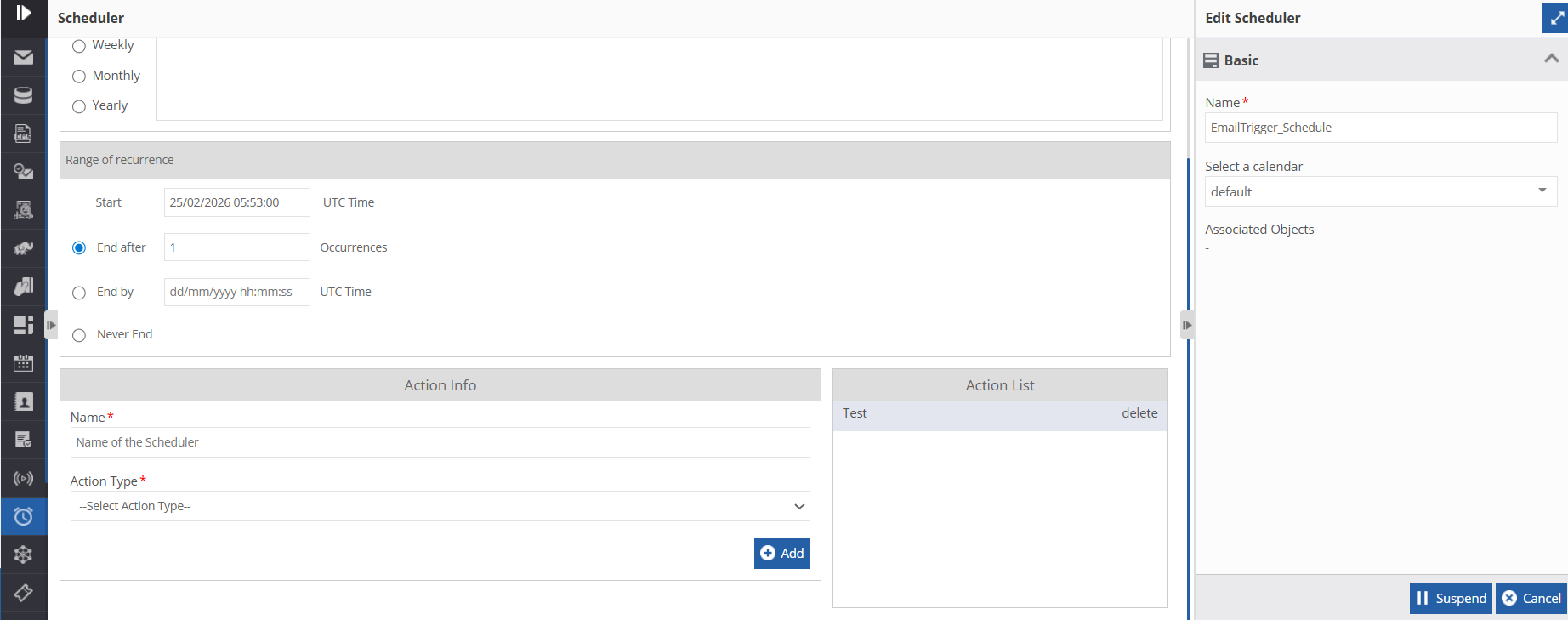
Click Ok. The entity gets scheduled and Suspend button appears for the initiated entity.
-
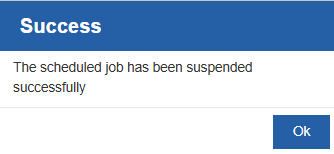
click the suspend button to suspend the scheduled job. A confirmation message is displayed upon suspension.
Duplicating Scheduler
Follow the below steps for duplicating an existing scheduler.
- Navigate to Management > Configuration Management > Scheduler.
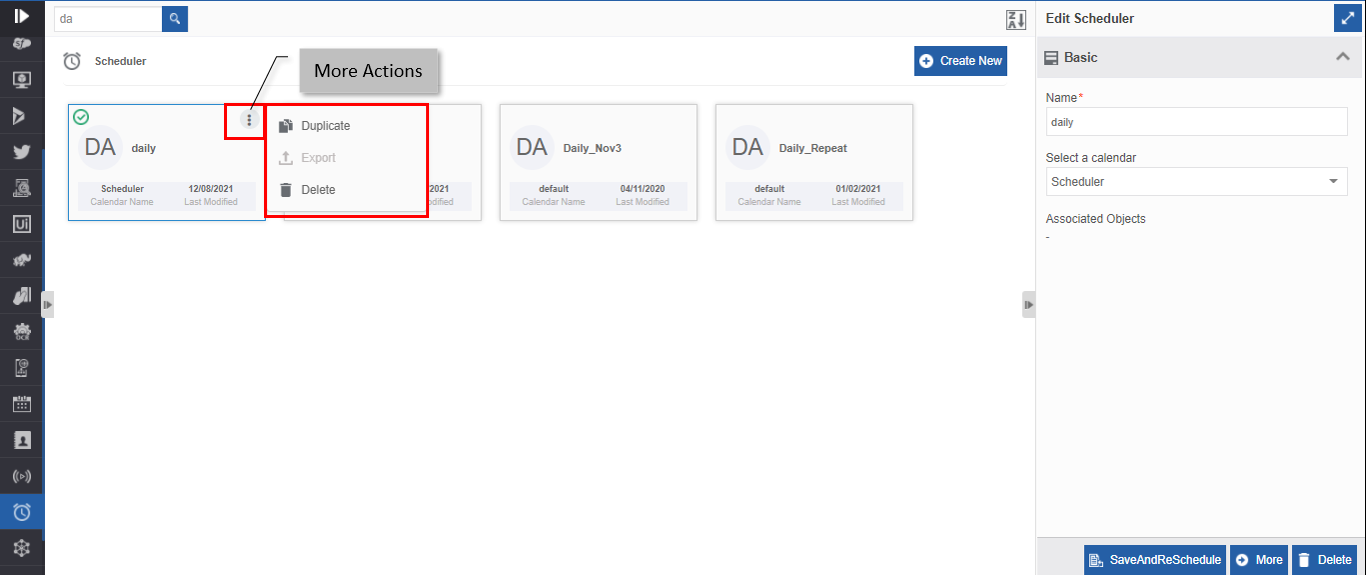
- Hover over any scheduler card. Three dots appear on the upper right side of the card.
-
Click the three dots. More Actions appear.
-
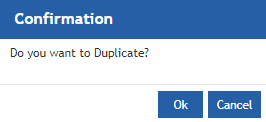
Click Duplicate. A confirmation pop-up appears.
-
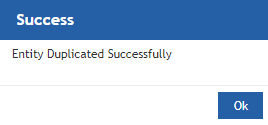
Click Ok for duplicating the scheduler (or you can click Cancel to cancel the duplicate action). A Success message appears on the successful duplication of the scheduler.
-
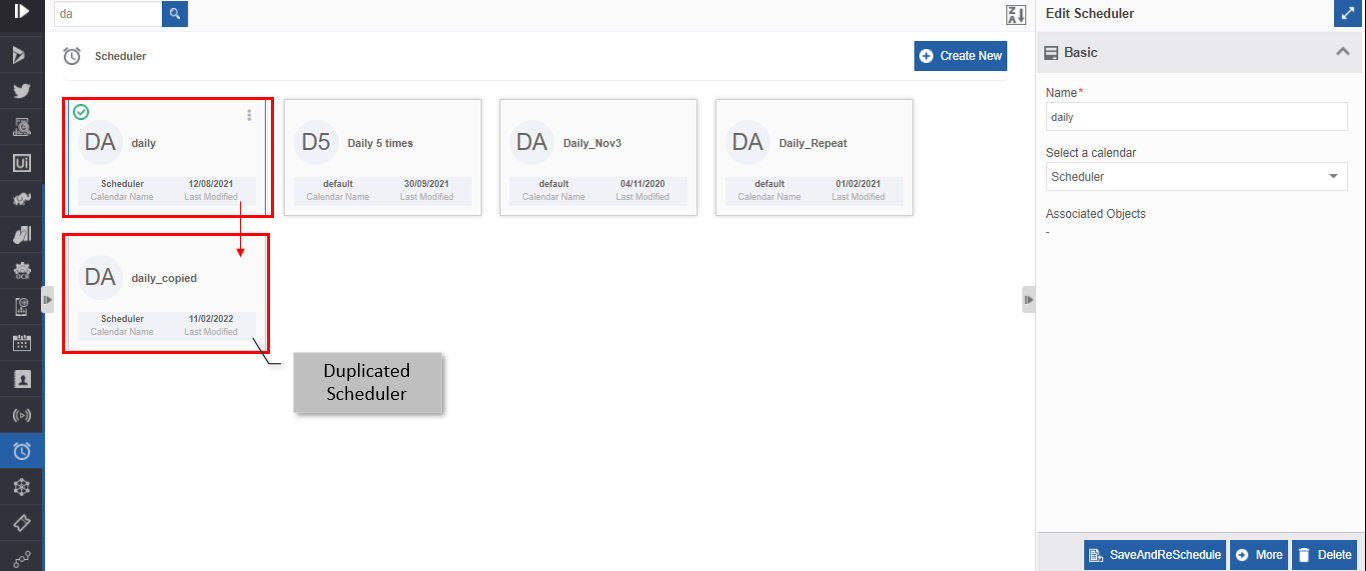
Click Ok. A duplicate copy of the scheduler appears on the scheduler page with the same scheduler name suffixed with “_copied”.
Deleting Scheduler
- Navigate to Management > Configuration Management > Scheduler.
-
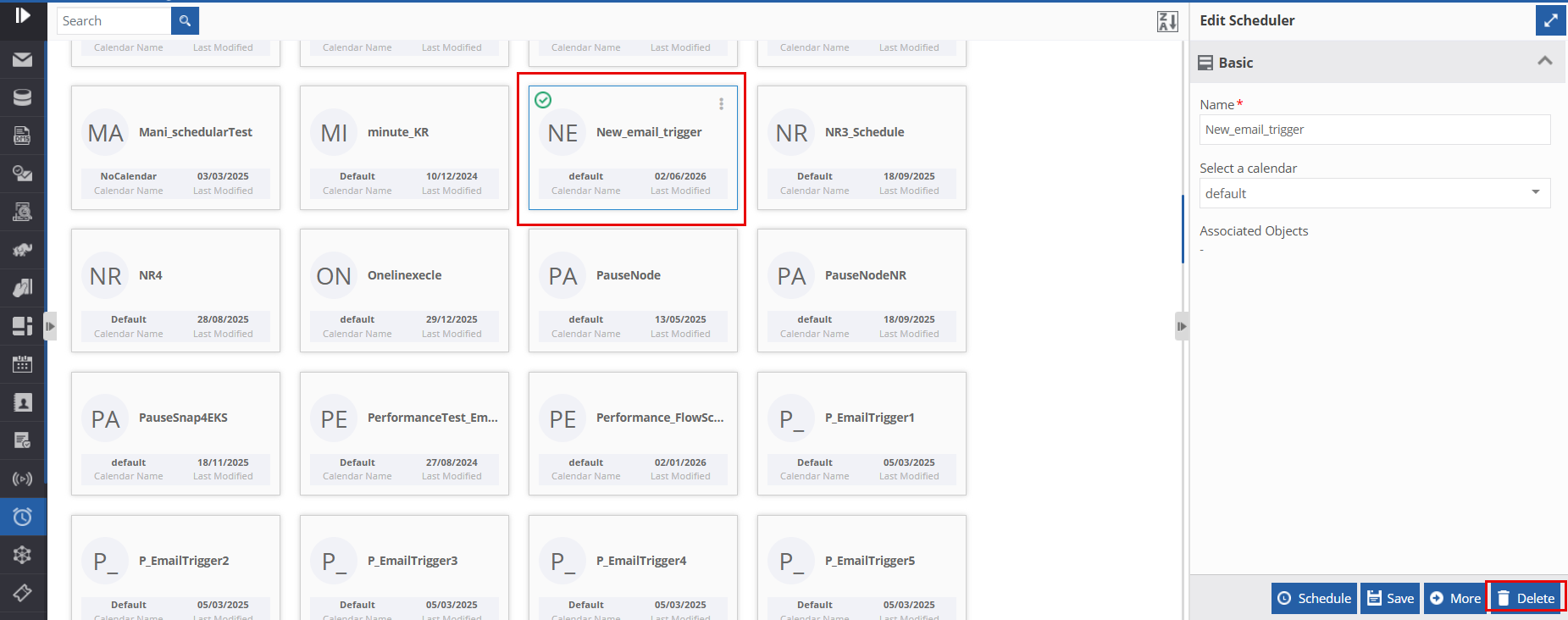
Click the scheduler name card that is to be deleted. The lower-right of the page displays the Delete button.
-
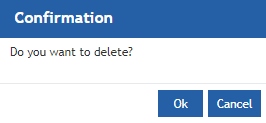
Click Delete. A Confirmation pop-up for delete appears.
-
Click Ok for deleting the scheduler.
Or
Click Cancel to cancel the action.
Alternatively, you can follow the below steps to delete the scheduler:
- Navigate to Management > Configuration Management > Scheduler.
- Hover over the scheduler card. Three dots appear on the upper right side of the card.
- Click the three dots. More Actions appear.
- Click Delete and follow step 4 in the above procedure.