LDAP
Lightweight Directory Access Protocol (LDAP) is configured and mapped when you are dealing with a client-server model. LDAP is a directory service protocol that runs on a layer above TCP/IP. It allows you to connect, search, and modify internet directories.
LDAP is used to search your active directory for information about users, computers, and groups within your Active Directory database. LDAP configurations in platform allow you to connect the Platform with the LDAP server. By connecting the Platform with LDAP, the Platform users that are configured as LDAP users are authenticated through the LDAP server. It also supports Group mapping.
Creating and Configuring a New LDAP
Follow the below steps for creating a new LDAP.
- Navigate to Management > Configuration Management.
-
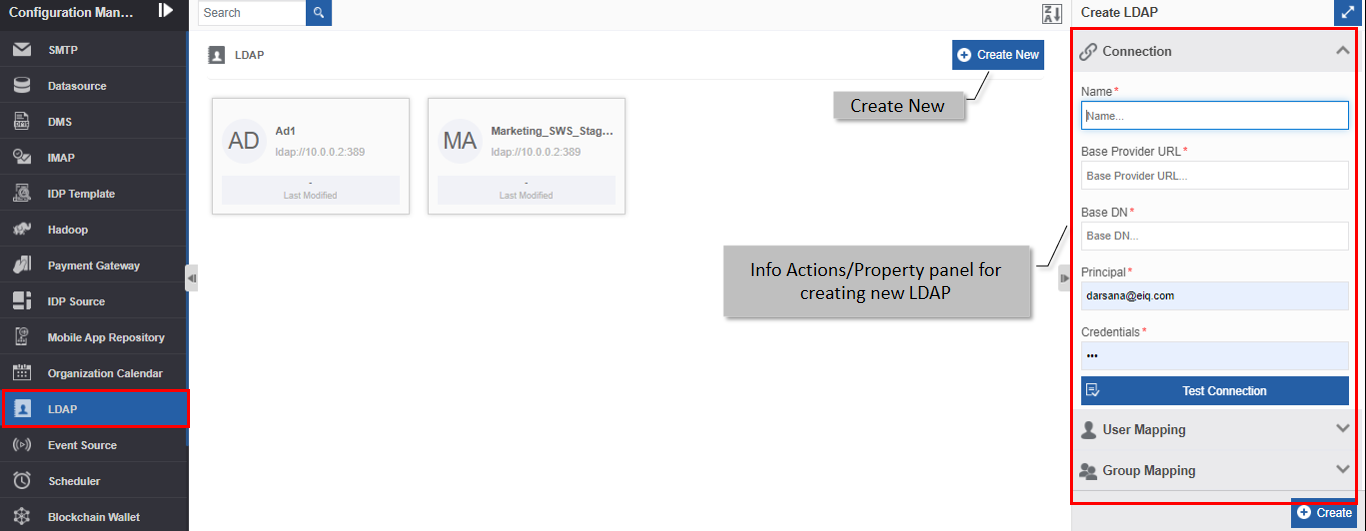
Click LDAP in the configuration entity panel.
-
Click +Create New. The Create LDAP panel appears.
-
Below the Connection accordion, enter the Connection details in the Create LDAP panel as explained below.
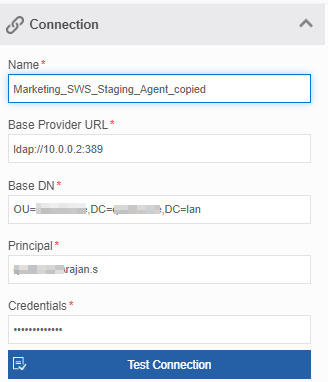
Field Description Name* Enter the name of the LDAP.
Character limit: 50.
Data type: Alphanumeric and symbols. Whitespace is not allowed.Base Provider URL* Enter the base provider URL. Base DN* Enter the base DN value.
A base DN is a point from where a server searches for the users. If the LDAP URL is used to represent search criteria, then this is the base DN for that search.Principal* Enter the principal (along with domain details) in the textbox below Principal.
In LDAP, a principal is an object that presents the "identity" (e.g., name of the login user)Credentials* Enter the admin credentials of the LDAP server in the textbox below Credentials. In LDAP, credentials are the "credibility" parameters associated with the principal (e.g., password) -
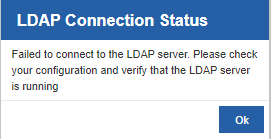
Click Test Connection to validate the connection status.
- If the connection fails, an error message appears and you need to rectify the error.
- If the connection is a success, a success message appears.
- If the connection fails, an error message appears and you need to rectify the error.
-
Below the User Mapping accordion, enter the details as explained below.
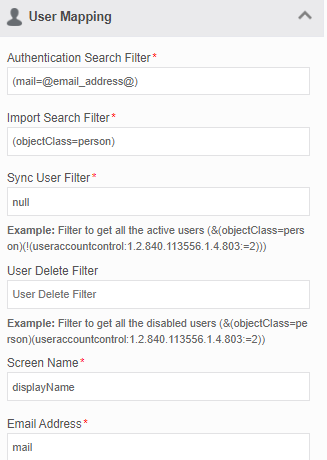
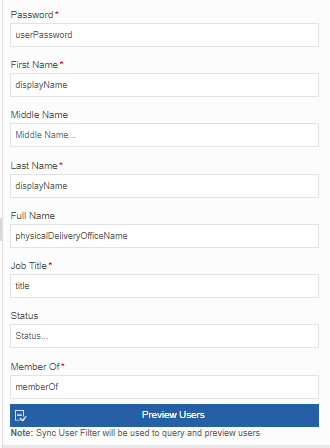
Field Description Authentication Search Filter* Enter the authentication search filter for LDAP.
This is used to make sure that the user who is logging in is authenticated or not. When a user logs in with their credentials, it is matched with the authentication search filter entered here. You can mention the group of the AD in this search filter.Import Search Filter* Enter the import search filter for LDAP.
It is the filter used for the import of the users.Sync User Filter* Enter the required filter for which the users are to be synced.
Example: Filter to get all the active users:(&(objectClass=person)(!(useraccountcontrol:1.2.840.113556.1.4.803:=2)))User Delete Filter Enter the required filter.
Example: Filter to get all the disabled users:(&(objectClass=person)(useraccountcontrol:1.2.840.113556.1.4.803:=2))Screen Name* Enter the screen name.
It is the name available in the LDAP client which is read and mapped to the screen name in Platform for the LDAP user.Email address* Enter the column name of the LDAP that contains the email id of the LDAP user which is mapped to the email address in the Platform. Email is not case sensitive. It identifies the email entered in any case as lower case. Password* Enter the column name of the LDAP that contains the password reference of the LDAP user which the Platform uses for authentication. First Name* Enter the column name of the LDAP that contains the first name of the LDAP user which is mapped to the first name in the Platform. Middle Name Enter the column name of the LDAP that contains the middle name of the LDAP user which is mapped to the middle name in the Platform. Last Name* Enter the column name of the LDAP that contains the last name of the LDAP user which is mapped to the last name in the Platform. Full Name Enter the column name of the LDAP that contains the full name of the LDAP user. Job Title* Enter the column name of the LDAP that contains the job title of the LDAP user. Status Enter the column name of the LDAP that contains the status of the LDAP user. Member Of* MemberOf just tells what LDAP attribute to use for the membership lookup.
It will search for users who are a member of specified group(s).
Example: -
Click Preview Users to validate the user status.
Note
Sync User Filter will be used to query and preview users.
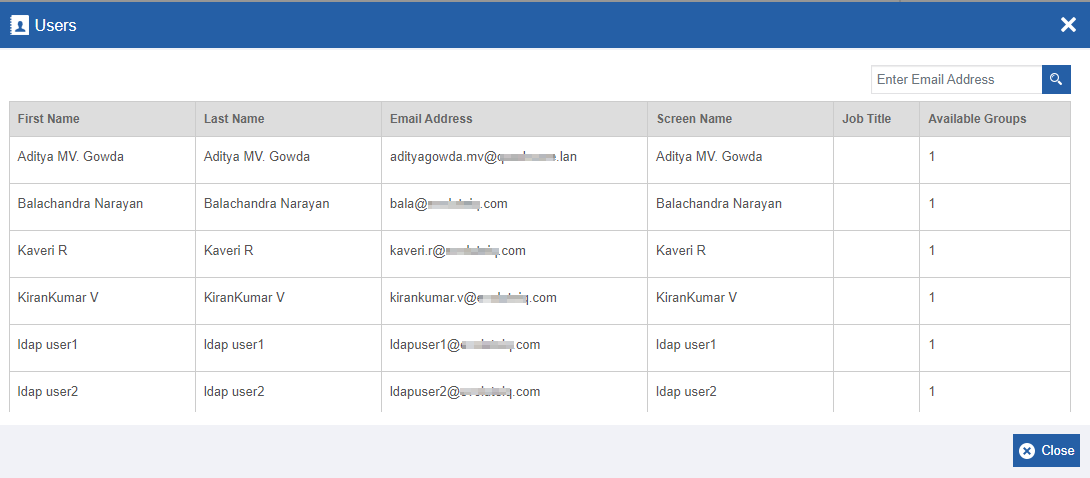
-
Click the Group Mapping accordion and enter the details as explained below.
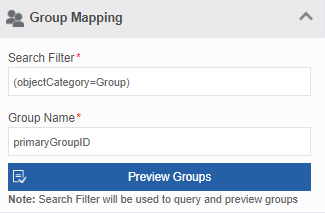
Field Description Search Filter* The search filter for the group.
Default search filter:(objectCategory=Group).Group Name Enter the required identifier from the AD. The group name mentioned here is the identifier of the AD.
The current identifier provided in the platform is “CN”. -
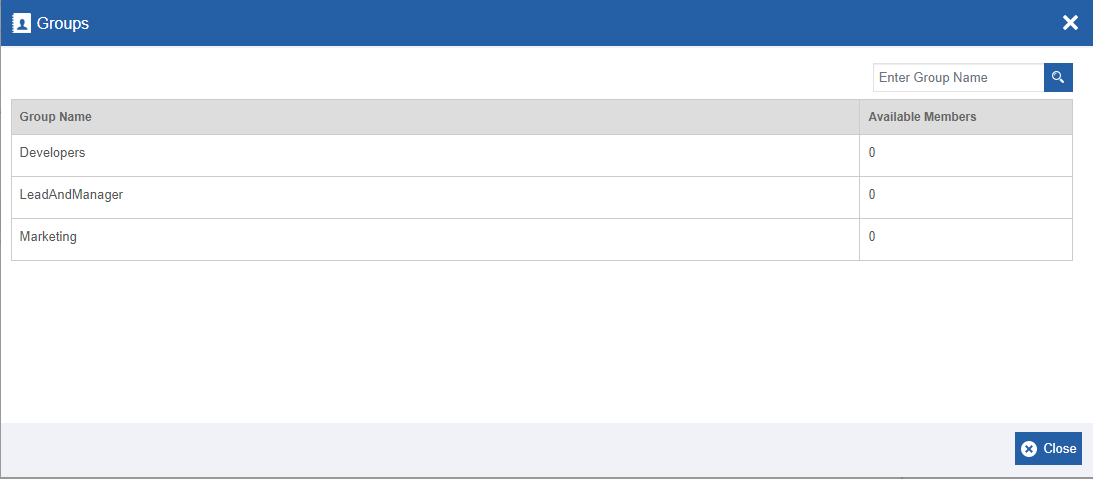
Click Preview Groups for previewing the groups. The preview of the group displayed is based on the search filter provided.
Note
Search Filter will be used to query and preview groups. The preview Filter pop-up displays the groups and the number of members in each group.
Enter Group Name on the right-side search box to filter the required group name.
-
Click Close to close the pop-up.
-
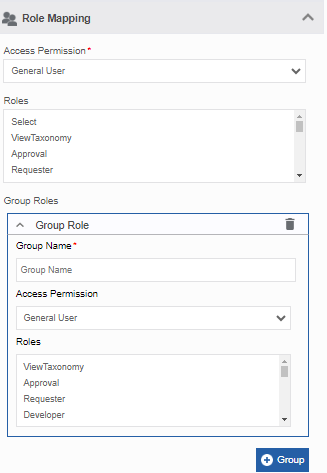
Click Role Mapping accordion and enter the details. The roles get refreshed every time the LDAP user authenticate and logs in.
-
Select the required Access Permission from the list. The provided permission gets applied to the selected role.
-
Select role(s) for the LDAP user from the Roles drop-down list.
You can select multiple roles.- CTRL+Click to select multiple roles.
- Click any role and CTRL+A to select all roles.
-
Click +Group in the Group Roles. This is to map an additional role along with the role filter above. The role selected under a particular group will get associated with the LDAP if the user is in that group. That is, the LDAP is applicable to selected role in that Group along with the role specified in the filter.
- Group Name: Enter the Group name.
- Access Permission: Select the access permission level for the role. The provided permission gets applied to the selected role.
- Roles: Select the Roles you want to map to the Group.
-
Click Create on the bottom right of the page and the LDAP gets created with the details entered.
Viewing and Editing LDAP
- Navigate to Management > Configuration Management > LDAP.
-
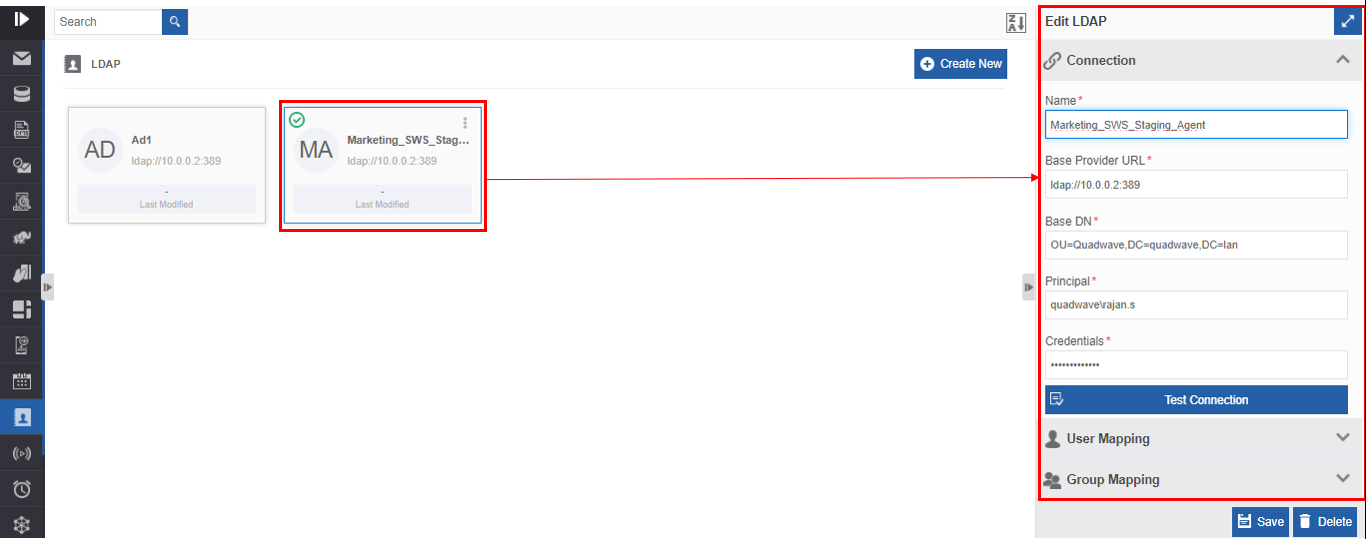
Click the LDAP card to view the details of the selected LDAP. The details of the LDAP appear in the Info Actions panel (Edit LDAP).
-
Edit the LDAP details as needed.
- Click Save.
Synchronizing Users
The sync user feature in the LDAP configuration allows you to sync users to the AD. The Sync User feature fetches the details based on the filter that you enter in the Sync User Filter field.
- Navigate to Management > Configuration Management > LDAP.
- Hover over any LDAP card. Three dots appear on the upper right side of the card.
-
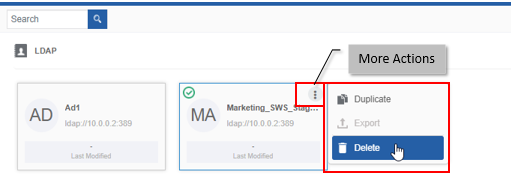
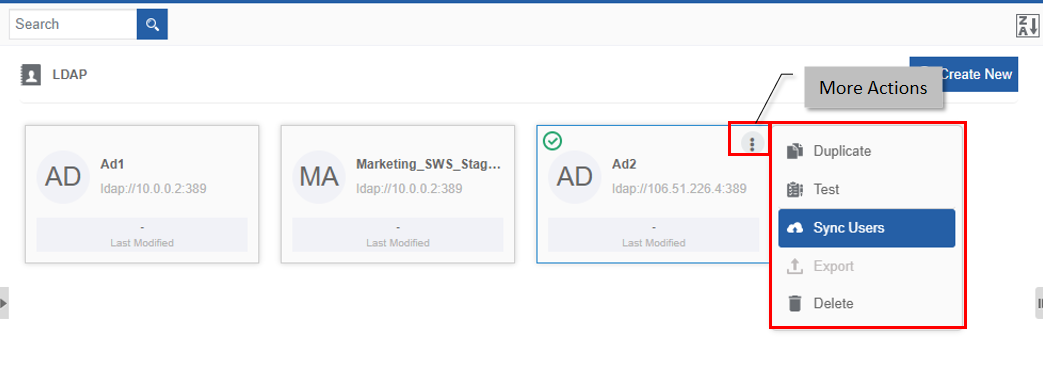
Click the three dots. More Actions appear.
-
Click Sync Users. A confirmation pop-up appears.
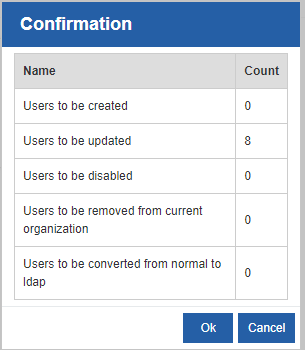
- Users to be created: Displays the count of the number of new users available in the AD who are not yet users of the Organization in the Platform (not yet logged in to the Platform). That is, this is the number of users that are not yet created as organization users in the platform.
- Users to be updated: Displays the count of the number of users who have a role update or any other update. These users are already part of the organization and only the details are to be updated.
- Users to be disabled: Displays the count of the number of users to be disabled in the organization. This count is based on the filter provided in the Delete Filter field. If the user id provided in the Delete Filter exists in the AD and only in the current Organization, the count appears in this field. When you sync this, the user is deactivated form the organization.
- Users to be removed from current Organization: Displays the count of the number of users to be removed from the current organization. This count is based on the filter provided in the Delete Filter field. If the user id provided in the Delete Filter exists in the AD and in the multiple Organizations, the count appears in this field. When you sync this, the user is deactivated only from the current organization.
- Users to be converted from normal to ldap: Displays the count of the number of users who need to be converted from normal users to LDAP users.
Normal user refers to user who is created in the Management > Organization Management > Users section and they can edit the user details. This user also exists in AD. When this is synced, the normal user is converted to LDAP user, meaning that the user cannot edit the details anymore in the Management > Organization Management > Users section.
Whatever details are in the AD is synced for this user. In this case, when the user logs in to the platform, they will not be able to login with the platform credentials; they need to provide the AD credentials (same username but AD password). It means that the user is authenticated via LDAP, and hence the LDAP user.
If you do not want to convert the normal user to LDAP user, you can write the filter in the Sync User Filer to ignore the particular user from converting to LDAP user. In this case, the filter excludes that particular user and it will not appear in the count of Users to the converted from normal to LDAP.
-
Click Ok to sync the details displayed in the confirmation pop-up.
Duplicating LDAP
Follow the below steps for duplicating an existing LDAP.
- Navigate to Management > Configuration Management.
- Click LDAP. The list of all LDAPs is displayed.
- Hover over any LDAP card. Three dots appear on the upper right side of the card.
-
Click the three dots. More Actions appear.
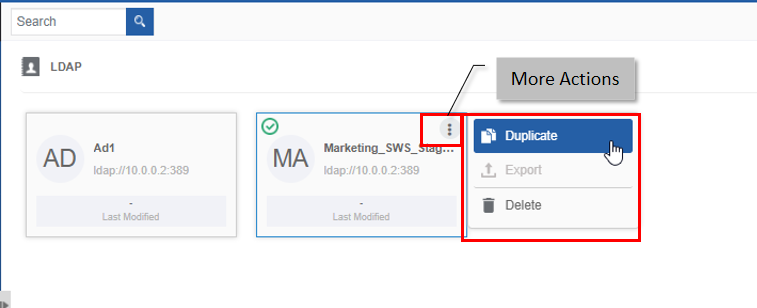
-
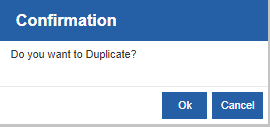
Click Duplicate. A confirmation pop-up appears.
-
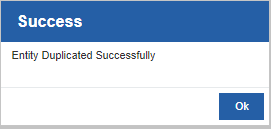
Click Ok for duplicating the LDAP (or you can click Cancel to cancel the duplicate action). A Success message appears on the successful duplication of the LDAP.
-
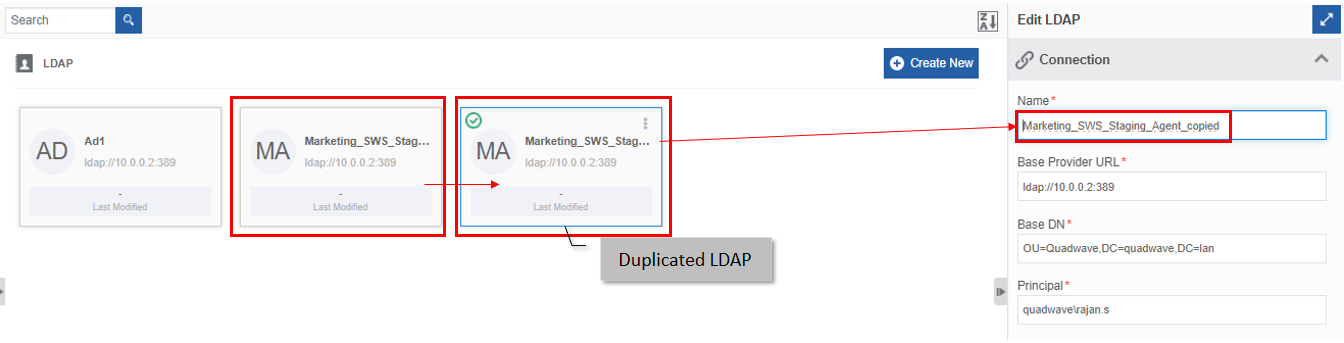
Click Ok. A duplicate copy of LDAP appears on the LDAP page with the same LDAP name suffixed with “_copied”.
Deleting LDAP
- Navigate to Management > Configuration Management.
- Click LDAP. The list of all LDAPs is displayed.
-
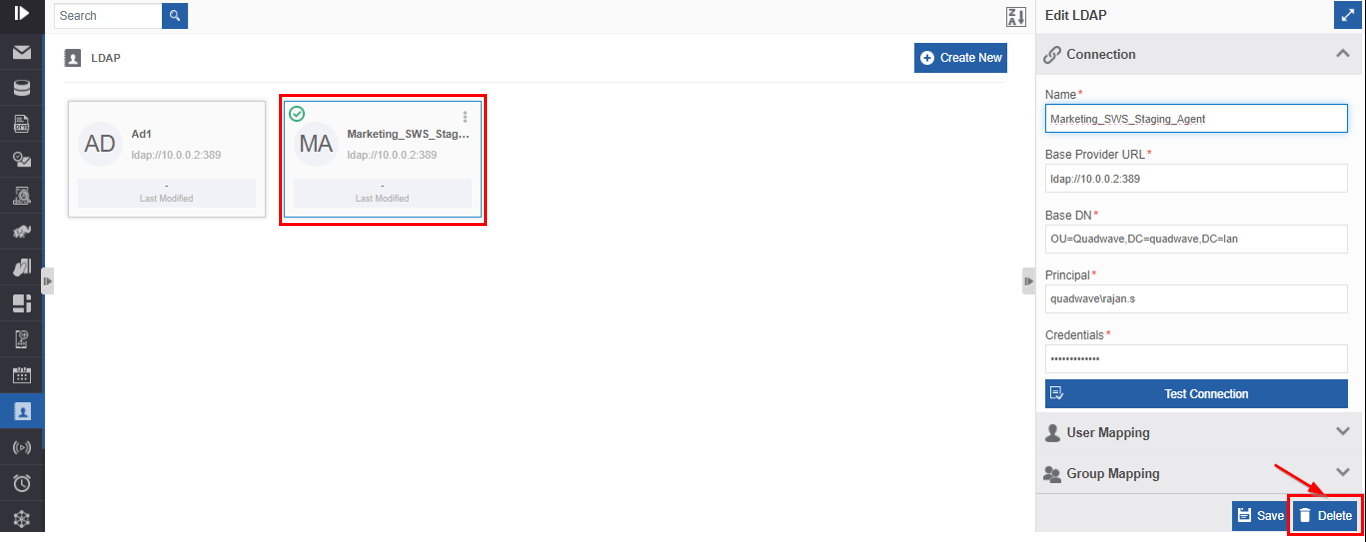
Click the LDAP name card that is to be deleted. The lower-right of the page displays the Delete button.
-
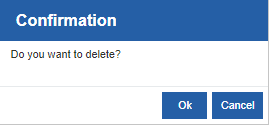
Click Delete. A Confirmation pop-up for delete appears.
-
Click Ok for deleting the LDAP.
Or
Click Cancel to cancel the action.
Alternatively, you can follow the below steps to delete the LDAP:
- Navigate to Management > Configuration Management.> LDAP.
- Hover over the LDAP card. Three dots appear on the upper right side of the card.
- Click the three dots. More Actions appear.
-
Click Delete and follow step 5 in the above procedure.