RPA Products
RPA Products section displays the application installers for our products: RPA Studio, RPA Agent and RPA Assistant.
About RPA Application installers
RPA Installers are .msi files that must be installed in your machine to work on RPA. There are three .msi files (for RPA Studio, RPA Agent and RPA Assistant), that must be downloaded and installed separately.
When a new organization is created, you must generate RPA installers and then download each of them for installation. Generating installers is a one-time installer generation process for an organization. Any user who has logged in to the Platform and has access to the Management section can generate installers for RPA applications.
You must download and install the three applications to get started with your RPA automation journey.
Generating Installers
-
Navigate to Burger menu >Management > RPA Mangement > RPA Products.
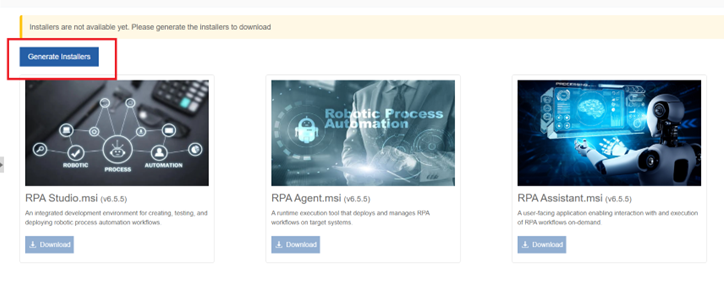
Generate Installers button will be displayed on top if none of the user has generated the installers yet for the organization.
You will see either of the two following messages based on Generate Installers button is visible or not.
Message Description Installers are not available yet. Please generate the installers to download. You have not yet generated any installers for your organization.
Generate Installers button will be active for installer generation.
Download buttons are not active until you generate the installers.Installers build completed successfully. Installers are now available for download. Generate Installer button will not be visible. The installers for your organization are already generated by some user in your organization.
Download button is active for you to download all the RPA installers. -
Click Generate Installers.
In progress message appears: "Installers pipeline triggered successfully. Installers generation is in progress. This may take a few moments".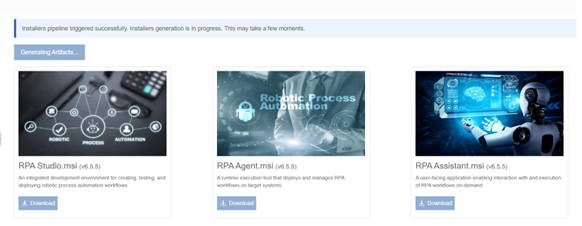
Once the installers are generated successfully, success message appears as "Installers build completed successfully. Installers are now available for download".
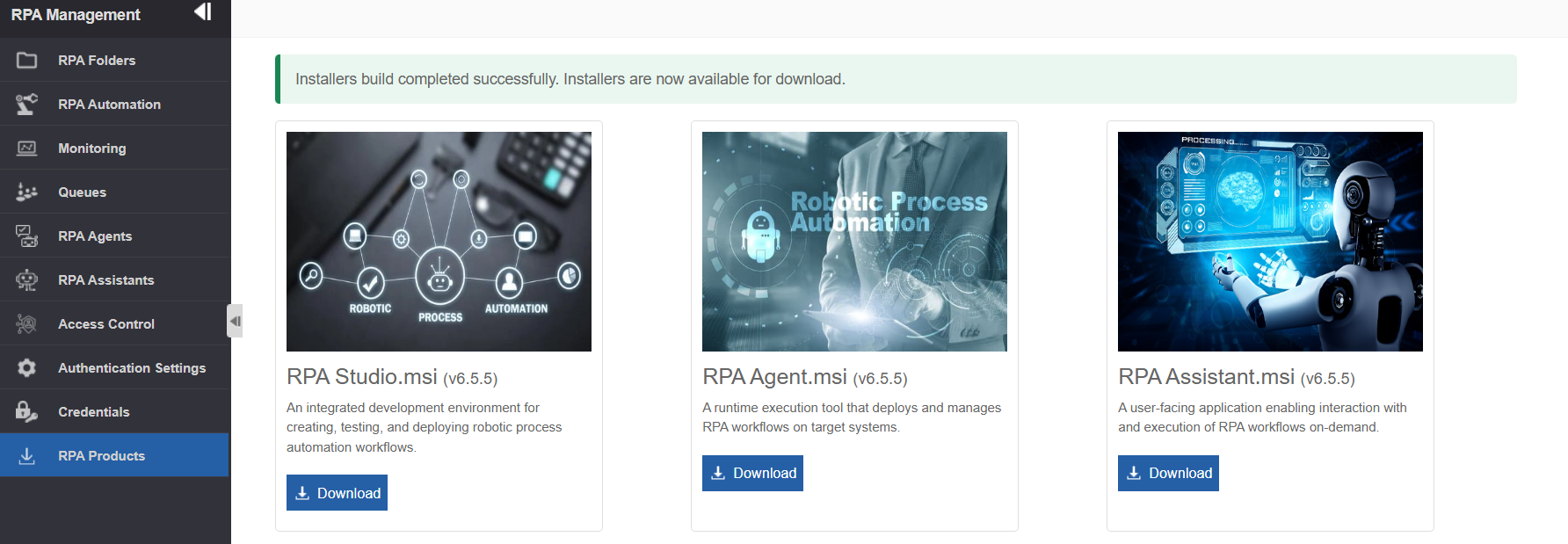
Now the Download button becomes active for your RPA applications.
Viewing and Downloading RPA Products
-
Navigate to Burger menu > Management > RPA Management > RPA Products. The list of all .msi files for the RPA products that are available for installation appear.
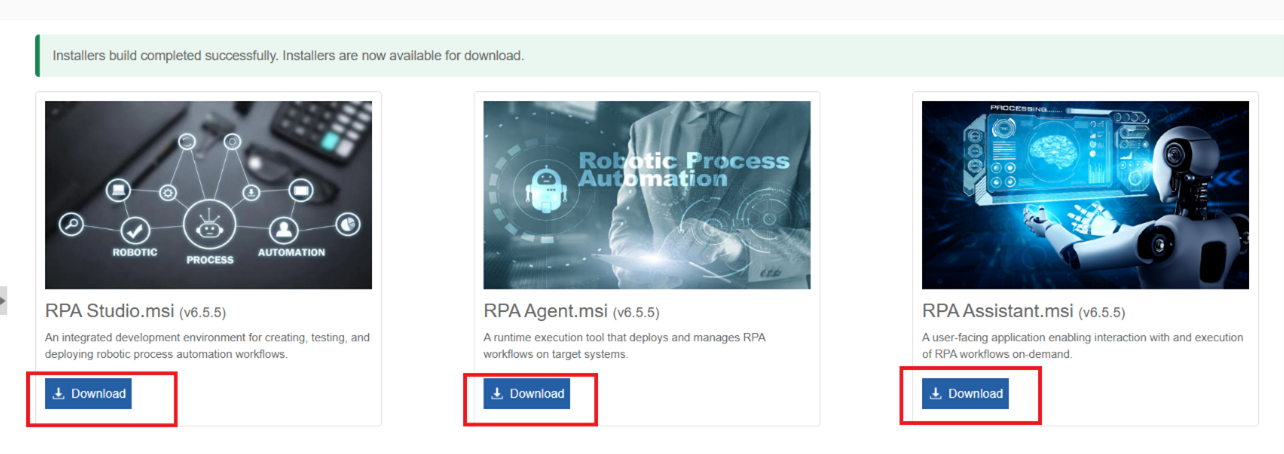
Info
If the Download button is not active, you must generate the installers. Refer to Generating Installers.
The available .msi files are:
- RPA Studio.msi – Download and install this file to create and design an RPA project and workflow. It offers you a * integrated development environment for creating, testing, and deploying RPA solutions.
- RPA Agent.msi – Download and install this file to Run or Play an RPA workflow. This is an automated executor of RPA tasks (unattented bots), enabling seamless interaction with various applications and systems.
- RPA Assistant.msi – Download and install this file to Run or Play an RPA workflow. This is an automated executor of RPA tasks with human in loop (attented bots), enabling seamless interaction with various applications and systems.
-
Click Download for any RPA application that you wish to download. The application gets downloaded to your machine.
Installing RPA Application
The Installer files are in .msi format.
In the RPA Product page, you can access the .msi files for the RPA products.
You must download the .msi files and install all the three RPA-related .msi files in your system for working on it.
For each RPA Product (RPA Studio / RPA Agent / RPA Assistant)
1. Open the folder in which the .msi file is downloaded.
2. Double-click the .msi file.
3. Follow the installation wizard. The installation wizard helps you to install the application.
After completing the installation, in your system search, search for RPA Studio / RPA Agent / RPA Assistant to view and access the application.