App Gennerator
What is App Generator?
The Application Generator (App Gen or App Generator) is a powerful feature in the EIQ platform that can automatically generate applications from your prompt or requirement document.
Use App Gen to turn your ideas into a working application. Write a prompt describing your business process, business idea, requirements, etc., or upload an existing business document to convert your business definition into a working automated application. This application can be deployed and accessed at runtime.
App Gen Workflow Summary
App Gen guides you through capturing intent (User Request), refining requirements, creating an overview, generating a Business Requirement Document (BRD), creating and validating the design, and deploying the application.
Only enabled capabilities are considered while generating the solution.
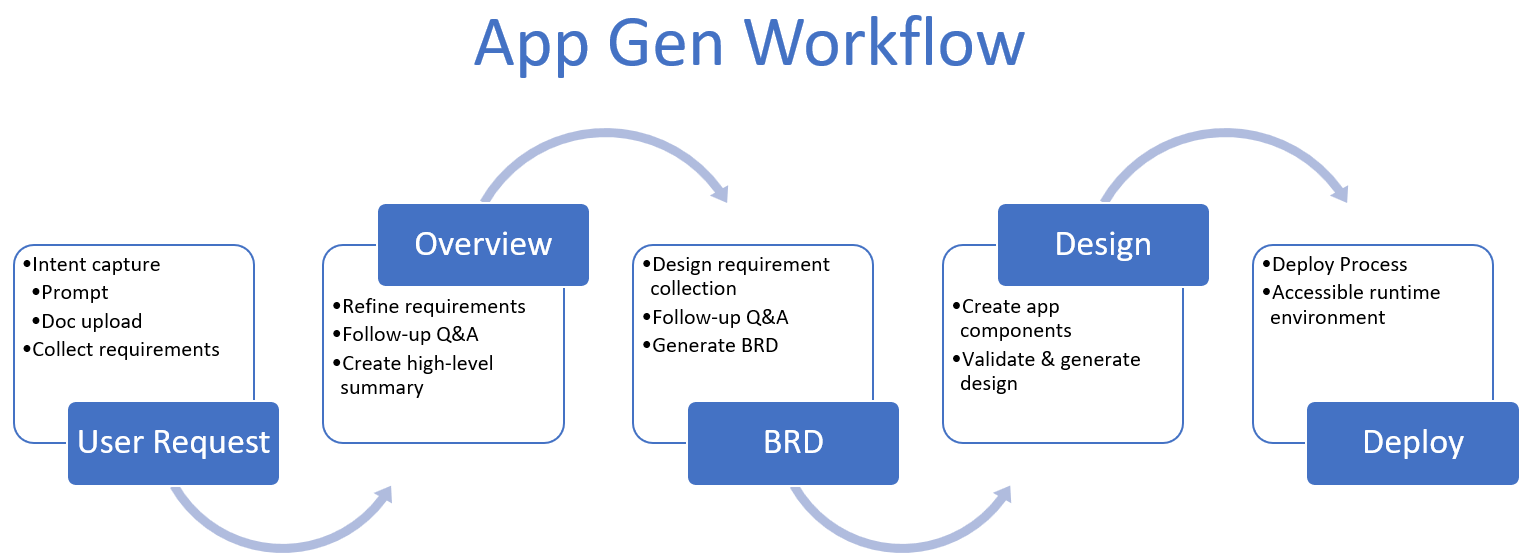
User Request:
In this phase, you can provide a prompt or upload a requirement document.
The agent interacts with you to collect your intent and requirements.
Overview:
In this phase, the agent interacts with you to refine your requirements.
Depending on your inputs, it creates an overview of what is to be built.
BRD:
In this phase, the agent interacts with you to refine the BRD requirements.
Depending on your inputs, it generates the BRD.
Design:
In this phase, the agent designs the application using the accessible platform components.
Design is created depending on the enabled platform capabilities.
Important Notes
- The initial release of App Gen focuses on platform process flow capabilities. Additional capabilities with a different license will be available in later releases.
- Multiple agents work behind the App Gen feature, and these agents that execute behind the scenes learn and adapt continuously.
- App Gen is a GenAI-based feature. The AI-generated application details, suggestions, and responses vary depending on the prompt, uploaded content, enabled capabilities, and model behavior. For this reason, do not consider the generated text as fixed content.
Intended Users
No-code Users
No-code users are Google Cloud Platform users who need an application without any complex code. These users can use the App Gen with an eiq360 Lite subscription. After subscription, a link is provided to the user to access the App Gen.
No-code users do not need to know the platform features or capabilities. They can create an application simply by entering a prompt to automate their business requirements.
Low-Code Users
Low-code users are Google Cloud Platform users who have an active subscription for eiq360 Lite and have primary knowledge of the platform capabilities and coding.
With an understanding of the platform, the low-code users interact with the agent to utilize specific features in the platform to create the application. They can write simple scripts that can be integrated into the workflow.
Benefits
- App Gen reduces the effort of designing an application.
- Utilize any LLM of your choice.
- To create an application, just describe your business requirement and answer questions related to your requirement.
- Once the design is generated, review, make changes, and deploy.
- The human-in-the-loop concept allows you to control the execution or alter the agent decisions. There are features like Continue, Stop, Approve, Deny, etc., in the agent interactions to make decisions and proceed.
- The “Continue” feature manages control over the continuous flow of information and saves token consumption.
Limits
Token Limit: Token limits are different for different subscribers based on the amount for which they have availed a subscription.
File Size: Currently, the upload file size limit is 30KB.
Feature: Currently, eiq360 Lite plan-specific capabilities are enabled.
Note
If you exhaust your limits and you are happy with the business solution provided, then you can upgrade to a higher plan as per the business scenario-specific message displayed for you.
Before Starting with App Gen
- Make sure you have access to your App Gen environment in the platform.
- Decide whether to start from a prompt or an uploaded business document.
- Prepare simple and focused requirement details for best results.
- Understand that enabled services or capabilities of App Gen vary by the plan you have subscribed.
- App Gen is intended to reduce the need for manual design in App Studio. However, if a capability is available in App Studio but is not yet supported by the agent flow, use App Studio to review or complete the design.
- Expect some limits in development or trial environments, such as prompt length, file size, model usage limit, or token usage.
Generating Applications
Accessing App Gen
To directly access after subscription:
- Open the App Gen link provided for your environment.
To access App Gen from the platform:
- After accessing the platform, navigate to Main menu > App Generator.
The App Gen home page with the prompting screen appears.
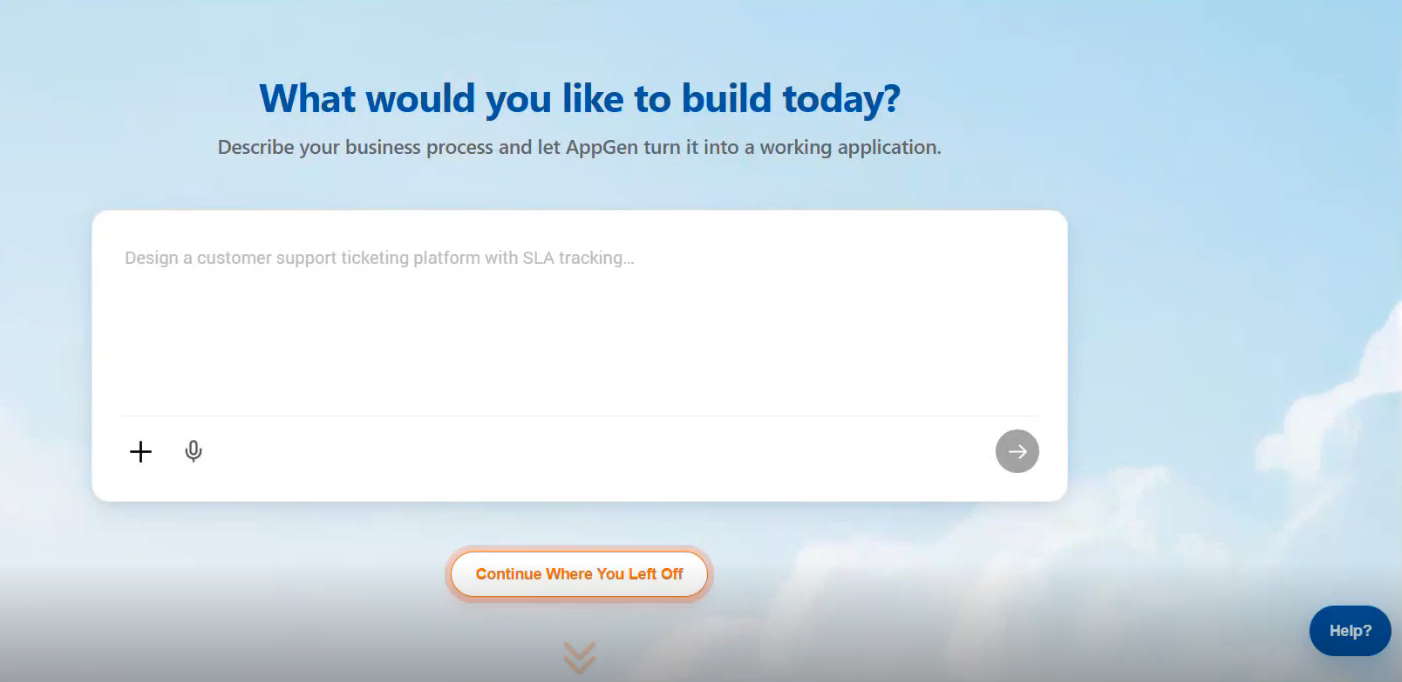
From the home page, start a new app creation journey in the following 2 ways:
- Provide a new prompt for your requirement.
- Click Continue Where You Left Off. The recent project list appears.
- Select the application > Click Continue to continue your automation creation.
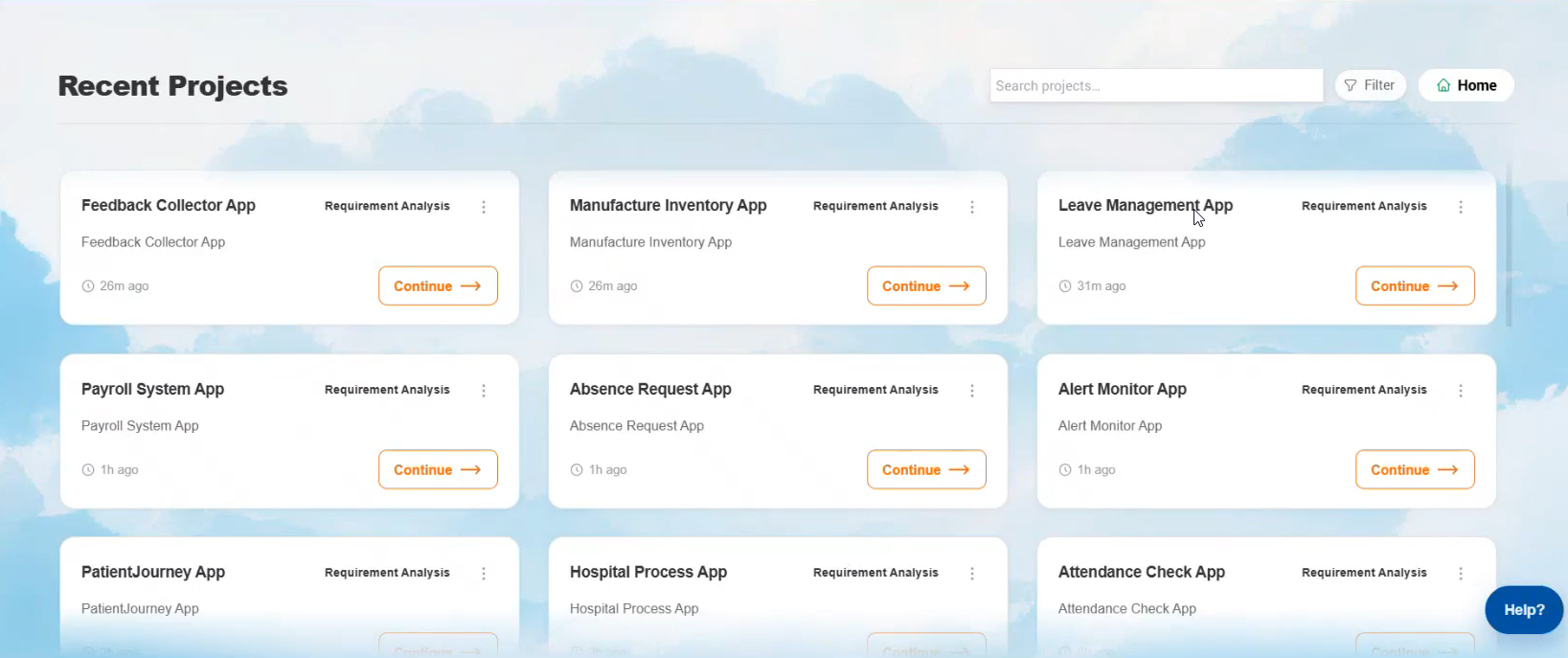
To generate an application:
- Enter a prompt: Enter a prompt that describes your requirement for the application or process.
- Upload a document: Upload an existing business document to read and understand the process. Allowed document formats: doc, docx, pdf, txt.
Application Generation Process
The prompt or the document you upload must contain the required business process. The generated content can differ for each prompt and document.
Info
App Gen is a GenAI-based feature. The AI-generated application details, suggestions, and responses can vary depending on the prompt, uploaded content, enabled capabilities, and model behavior. For this reason, do not treat generated text as fixed content.
The generation process consists of four phases before deployment: User Request. Overview, BRD, Design. Each phase appears as a milestone box in the App Gen canvas.
Phase 1: User Request
- Navigate through Main menu > App Generator.
To provide a prompt directly:
In the prompt text area, enter your requirement. Max number of characters allowed: 4000.
Follow best practices for prompt writing techniques to save your tokens and achieve the best results.
To upload your requirement document:
-
Click “+” > Attach Document and then select the required document. The document formats allowed are doc, docx, pdf, and txt.
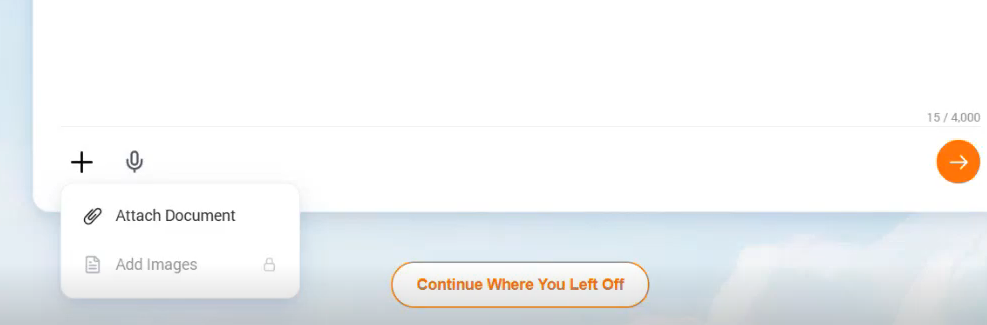
-
After providing the input, click the send arrow or hit Enter. The App Gen canvas appears.
App Gen Canvas
After prompting or uploading the document, the App Gen canvas appears.
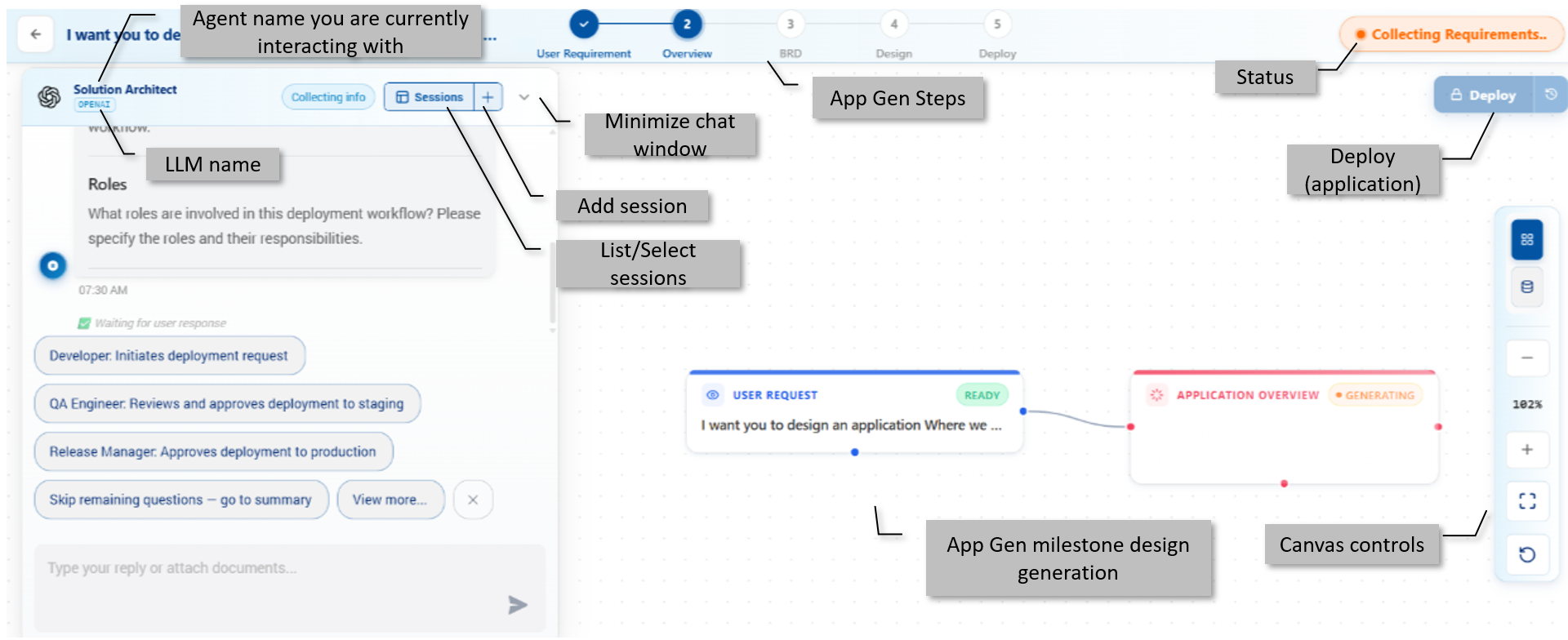
- App Gen Steps: Displays the steps or the milestones. This is a non-interactive view to understand the current stage of your application generation.
- Dark blue background with a tick indicates the milestone is completed.
- Dark blue background with the number indicates the milestone is in progress.
- White background with a number indicates the milestone is yet to start.
- Status: Displays the status of application generation.
- User interactive chat window: Interactive agent chat window where you can interact with the agent assisting you to refine your requirements.
- App Gen Canvas: The canvas displays the auto-generated application milestones and the corresponding details.
- Canvas controls: Refer to Canvas controls.
- Deploy: Click to deploy your application.
Phase 2: Overview
In phase 1, the user provides primary input: a prompt or an input document.
In phase 2, the agent creates an application overview using the provided details.
In phase 2 interaction,
-
Provide a name for your application when the agent prompts for an application name. If you don’t give a name, AI will choose a name for the application. You can change the application name till the BRD generation phase. Once you move to the application generation phase after finalizing the BRD, you cannot change the application name. Process flow names are auto-generated.
The agent will continue interaction until it gets all the relevant information. -
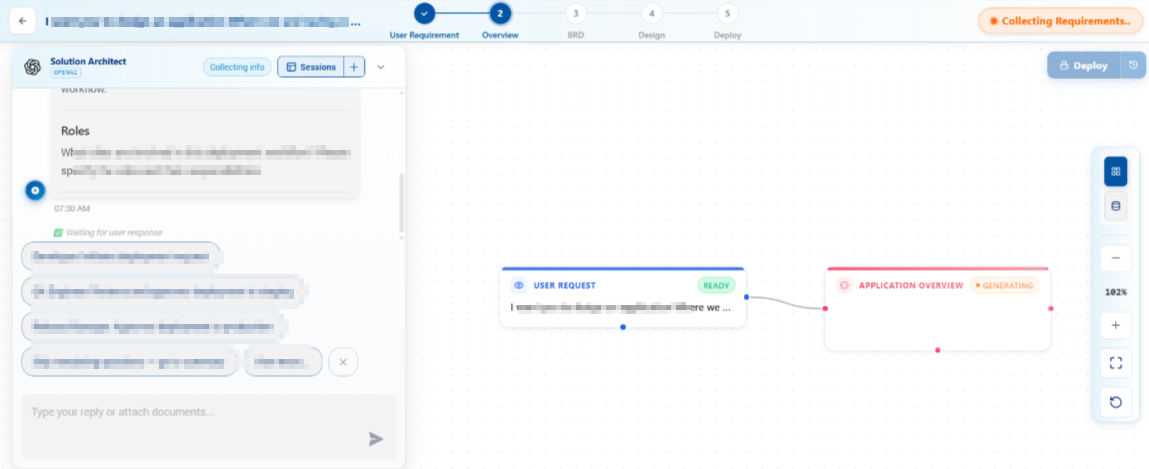
Interact with the agent for any modifications.
-
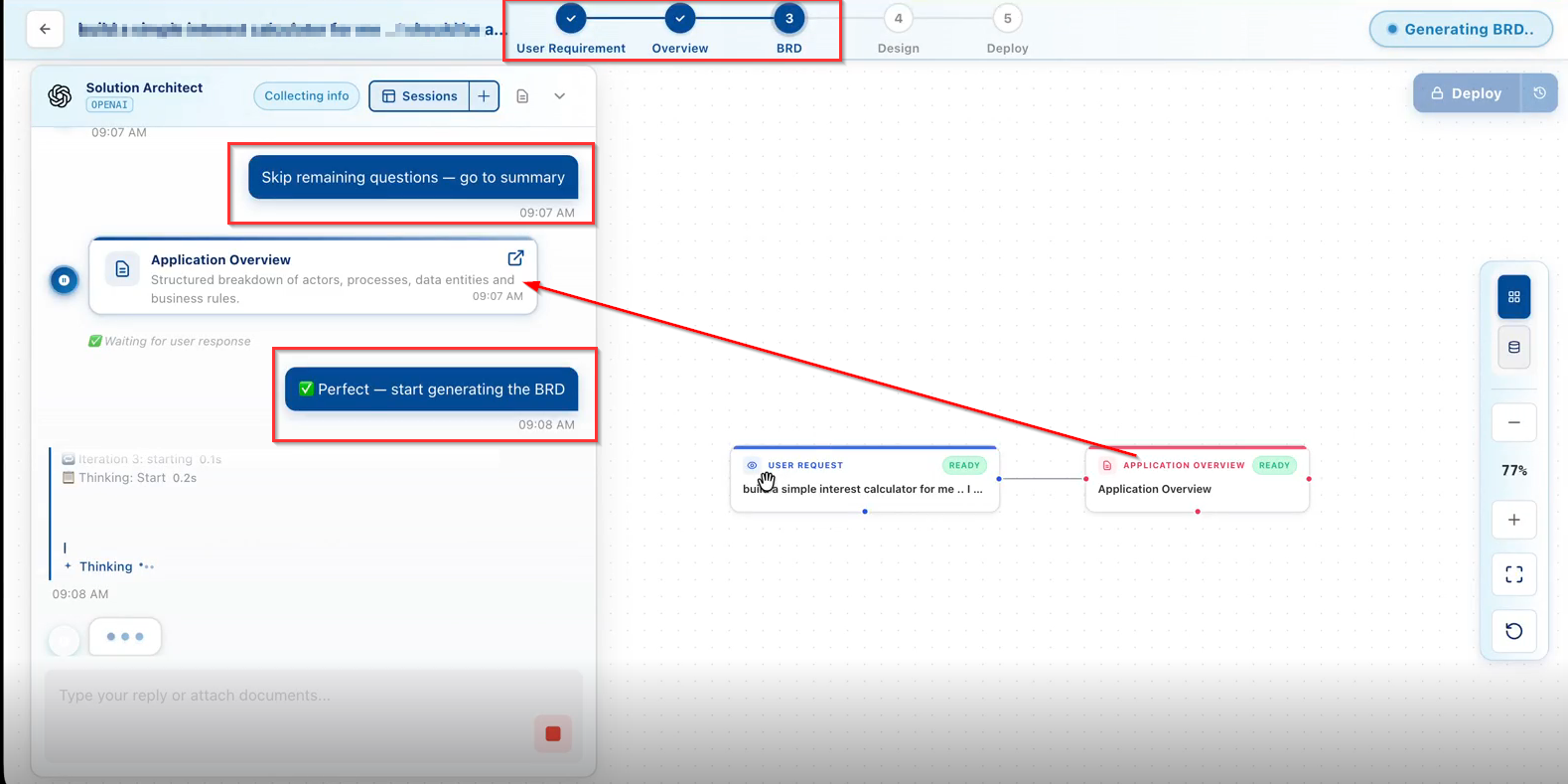
If you are satisfied in-between interactions, click Skip Remaining Questions – Go to summary from the user response list to terminate the interaction.
Info
When you skip agent questions, the AI-suggested default answers apply to the requirement.
After manual skipping or completing the interaction, it generates the Application Overview.
Phase 3: BRD
BRD is a formal document that outlines the business requirements for a specific project or application. It serves as a blueprint for the development team, detailing the objectives, scope, stakeholders, data architecture, process flows, and other critical elements necessary for the successful implementation of the project.
In phase 2, the agent creates an application overview using the provided details.
In phase 3, the agent creates a BRD using the application overview and interaction details.
In phase 3 interaction,
- Review the application overview provided in phase 2.
- Interact with the agent for any modifications.
-
When you complete your interaction for modifications, click Perfect – start generating the BRD from the user response list or type your request to start with BRD generation.
Info
When you skip the agent questions, the AI-suggested default answers apply to the requirement.
Note
BRD is the requirement document that the AI uses to generate the application.
When the BRD generation is completed, it moves to the design phase.
Warning
Make sure to finalize your application name at this stage. After moving to the design or app generation phase, you cannot change the name of application.
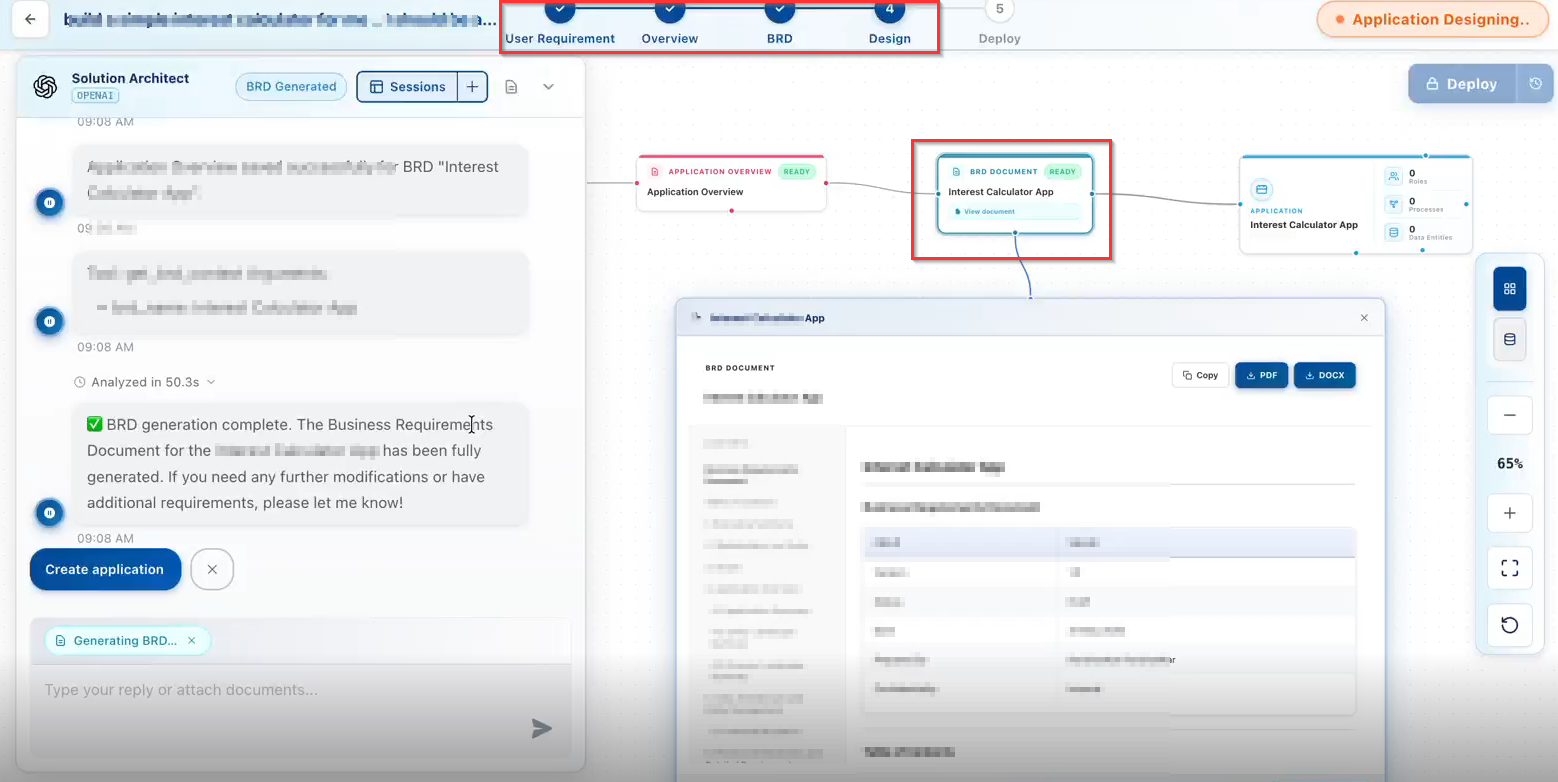
- Click the BRD Document node in the designer to view the details of the BRD.
- Copy: click Copy to copy the entire content of the BRD.
- PDF: Click PDF to download BRD in PDF format.
- DOCX: Click DOCX to download the BRD in a Word file.
Phase 4: Design
From the BRD, the App Gen creates the design for your application, that consists of workflow, processes, entities, entity mappings, users, etc., associated with it. Application design is created using accessible platform components that utilizes the capabilities enabled for the subscribed plan. After design validation, it generates the final design output.
In phase 3, the agent creates a BRD using the application overview and interaction details.
In phase 4, the agent designs your application and processes.
In phase 4 interaction,
-
If you are satisfied with the BRD, click Create application. The system starts the application generation process.
Note
Click the refresh icon in the canvas controls to view updated details as depending on the progress of the application generation.
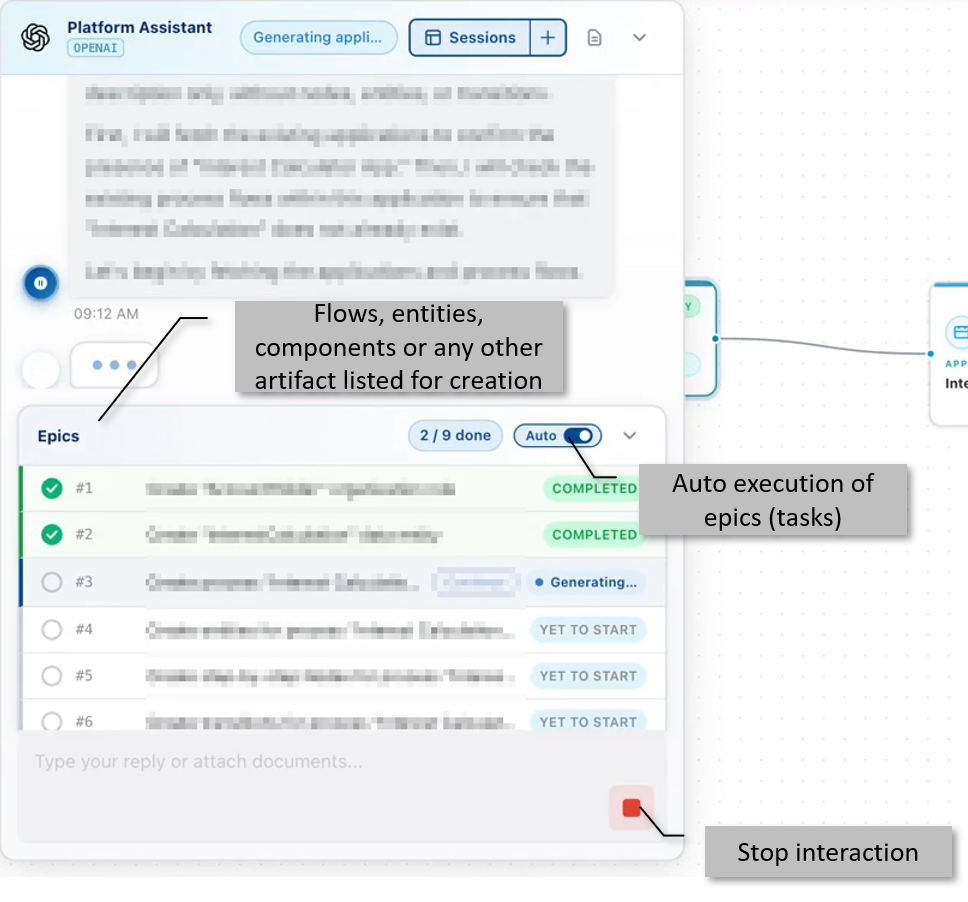
Application generation process includes:
- Creation of Epics.
-
Creation of entities and artifacts for each epic.
-
Click Continue on the first Epic item to start the creation of components. It checks and validates if the user or entity exists and then creates or edits accordingly.
To automatically create Epic-related design one after another, turn on the Auto switch in the Epic window on the chat interface.
Status of each Epic is updated after the Epic creation process.
- Yet to start: Epic execution not started.
- Generating: The creation of the artifact and its dependencies is in progress.
- Completed: The creation of the Epic item is completed.
-
After a few actions, it will wait for the max interaction response to proceed - Continue / Stop.
- Click the Red stop button at the bottom to stop the interaction.
-
Click Continue to continue with the application generation.
-
Max interaction response is a feature that regulates the flow of continuous generation of output. The user gets control over the execution. This controlled human-in-the-loop method allows you to view the result and then decide to continue or stop. This saves your tokens if you want to stop the interaction or execution in between rather than exhausting the entire tokens without having control.
- The Continue/ Stop action applies for a predefined number of steps. For example, for each n number of steps, “Continue / Stop” appears in the interaction chat window. Act and proceed as you prefer.
-
For final decision-making, the agent prompts you with Approve or Deny. Select the appropriate decision for the agent to proceed.
After generating the entire application, you can deploy it for runtime access.
Deploying Application
In the App generation, User Request to Design is a continuous agent-based execution.
Deployment of the application is a separate action that you must trigger or choose to execute. Choose to deploy the application when it is ready.
Validate and confirm the design before deploying.
-
Click Deploy on the top-right of the designer view.
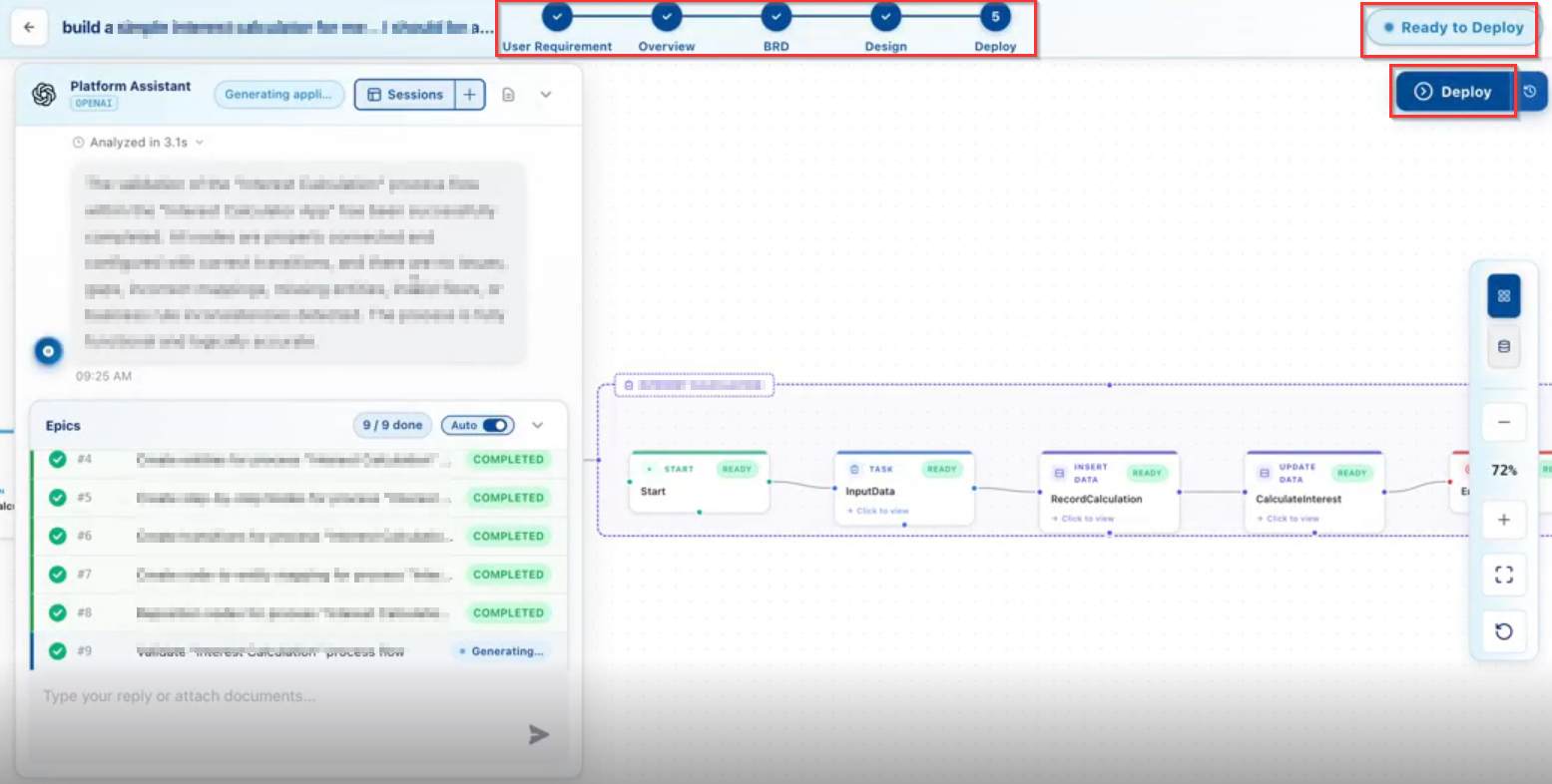
The Launch Application screen appears.
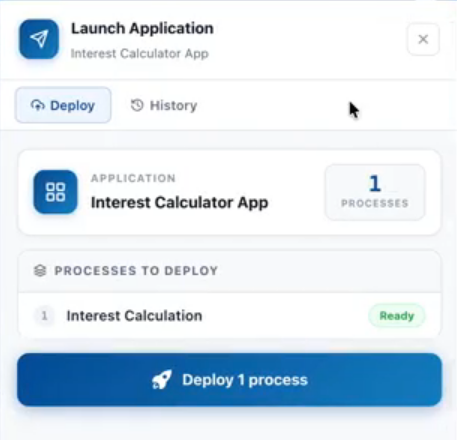
-
Click Deploy n process. The number of processes vary for each application.
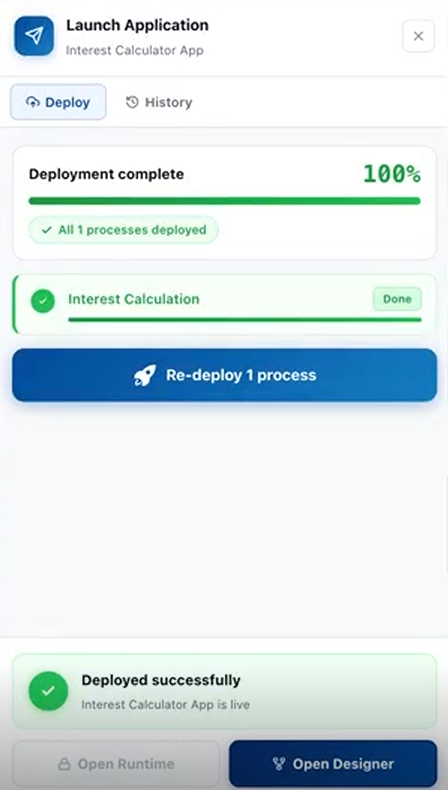
On successful deployment, success message appears.
Open Runtime: Opens the runtime application.
Open Designer: Navigates to platform > App Studio > Application Map.
Viewing Deployed AI-Generated Apps
All the deployed applications are listed on:
-
App Generator > Recent Projects
Application names have “App” as the suffix. -
Platform > App Studio > Applications
AI-generated application names have GenAI as a prefix.
Redeploying the Application
- From Recent Projects, click and open the deployed application.
-
Alter the design.
-
Click Deploy. It redeploys the same application with the updated details in a new version. The new version will have a version number appended to the application name.
Deployment History
If you alter the definition or rule or logic in the deployed application and deploy again, it creates a new deployed version of the application.
The Deploy history feature allows you to view the list of all deployed versions.
- Open the application for which you want to view the deployment history.
-
Click the icon adjacent to the Deploy button.
The deployment history list appears.
Viewing Runtime Output
After deployment, access the application in runtime. The runtime application is the usable output that end users can interact with.
App Gen Features
Recent Projects
Recent Projects lists all your App Gen-generated applications in the organization (instance) in chronological order of creation. The latest application will be on top of the list.
It includes all the applications with different statuses. That is, deployed, non-deployed, generated, and paused. To be precise, it includes all the chat sessions with their requirement name. All the sessions are auto-saved.
All the project names are suffixed with “App”
The search and filter options help you to find your projects.
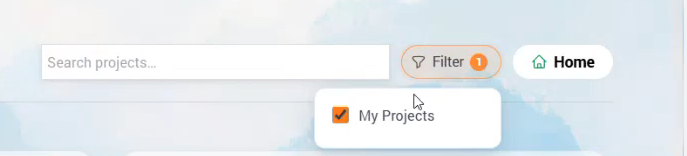
- Search: In Search projects, enter your project name and it filters the projects based on the name.
- Filter: Click Filter > My Projects: Your user-specific projects appear. After selecting the number of items, the number will appear on the filter number badge. The UI displays the selected projects.
- Home: Takes you to the top of the page.
Sessions
What is a session?
A session is one continuous interaction between you and the App Gen agent. It bundles the sequence of messages to maintain context and remembers what was said earlier in the same session.
Session in App Gen
The active session in App Gen remains open when you close the product. It allows you to view that section during your next visit.
However, note that it takes you to the top of the session.
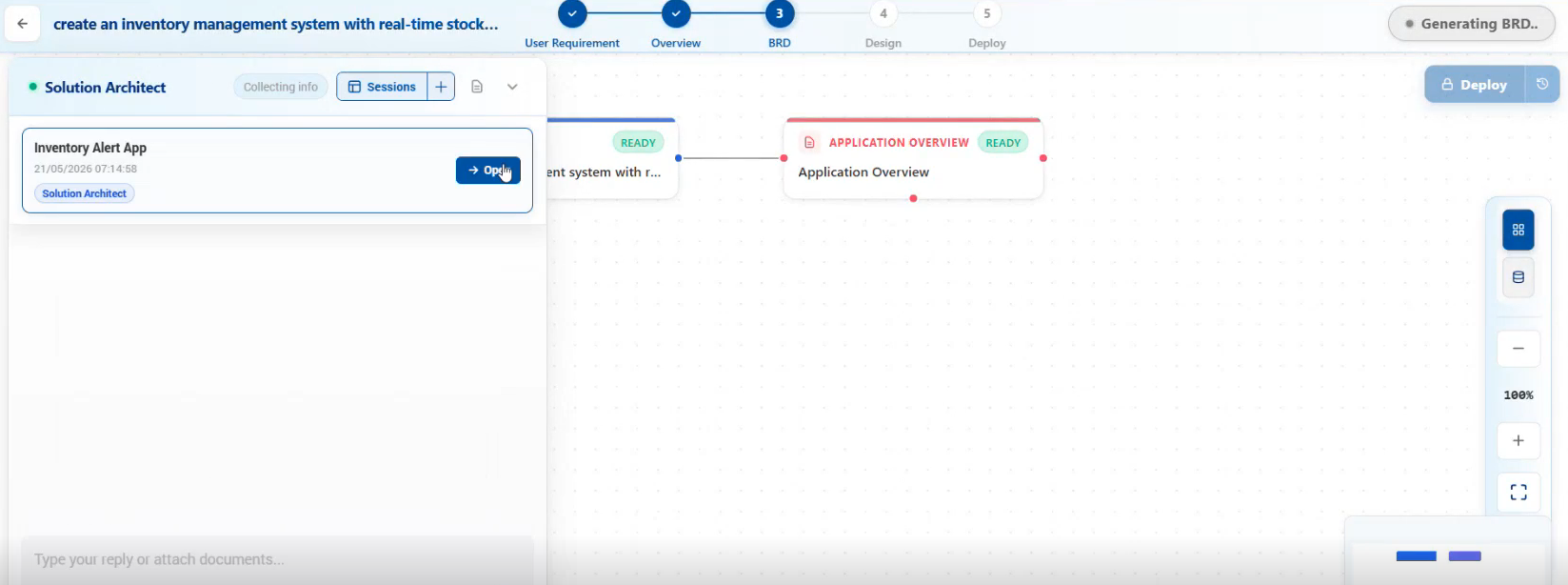
- On top of the chat window, click Session. List of sessions appear.
- Click Open to view a particular session interaction.
- Click “+” adjacent to Session to add a new session.
Canvas Controls
| Icon | Description |
|---|---|
 |
View canvas (back from any other screen) |
 |
View Data entities |
 |
Click Zoom in (+) /Zoom out (-) to view the details clearly when the flow becomes large. |
 |
Auto-fit canvas screen size to the screen. |
 |
Refresh canvas. Click the refresh icon when the agent is in app generating process. This provides a refreshed view of details in the canvas. |
To view the details of each milestone, click the milestone node in the canvas.
- Click USER REQUEST to view the user request.
- Click APPLICATION OVERVIEW node to view the overview details.
- Click BRD to view the generated document details.
- Click APPLICATION to view the design details.
- Click Individual process nodes to view the corresponding details.
Trouble Shooting
If App Gen cannot complete an action, review the current step and try again if appropriate. The discussion highlights the need for clearer in-product support guidance when backend API or deployment issues occur.
- If a step pauses, click Continue.
- If a session behaves unexpectedly, reopen the relevant session and verify the current state.
- If App Gen cannot complete an action, review the current step and try again if appropriate.
- If deployment fails, retry after confirming that the environment is available.
- If the issue persists, use the organization’s support process.